How to Allow Users to Upload Files to Google Drive Easily
Learn how to allow users to upload files to Google Drive securely without login, permission issues, or messy shared folders using a simple upload flow.
Allowing users to upload files to Google Drive is a common requirement for founders, educators, and small businesses. You may need to collect homework submissions, client documents, design assets, or user-generated content. While Google Drive is excellent for storage, it does not natively provide a smooth and secure experience for external uploads.
Many teams end up dealing with permission issues, shared folder chaos, or overflowing email inboxes. In this guide, we’ll walk through practical ways to allow users to upload files to Google Drive, explain the common challenges, and show how SendToDrive provides a clean and scalable solution.
For the product workflow and account requirements, see how to let others upload to your Google Drive without sharing folder access.
Why Allowing Users to Upload Files to Google Drive Is Not Straightforward
Google Drive is built primarily for collaboration, not public file intake. When you try to allow external users to upload files, several issues appear.
Permission Management Is Confusing
To upload files, users usually need editor access to a folder. This can result in:
- Users seeing other files
- Accidental edits or deletions
- Repeated access requests
Managing these permissions at scale becomes time-consuming.
Users Are Forced to Log In
Most Google Drive upload methods require users to sign in with a Google account. This creates friction, especially for:
- Clients
- Students
- Non-technical users
Every extra step reduces completion rates.
File Organization Becomes Manual
When multiple people upload files to the same folder:
- Filenames collide
- Submissions get mixed
- Manual sorting becomes necessary
This slows down your workflow and increases errors.
Common Use Cases for Uploading Files to Google Drive
Client Document Collection
Small businesses and agencies often collect contracts, invoices, and assets from clients. Email attachments quickly become hard to track and store properly.
Assignment and Homework Submissions
Educators need a simple way for students to submit files without worrying about Google account access or file limits.
Community and User Submissions
Founders running communities, beta programs, or feedback loops may need users to upload screenshots, videos, or documents securely.
Traditional Methods and Their Limitations
Before using a dedicated solution, most teams rely on one of these approaches.
Shared Google Drive Folders
Sharing a folder with editor access allows uploads, but:
- Users can see each other’s files
- Folder clutter grows quickly
- Security risks increase
Google Forms with File Upload
Google Forms supports file uploads, but:
- Users must log in with Google
- Folder structure is limited
- Customization options are minimal
Email Attachments
Email is familiar but inefficient:
- File size limits
- Manual downloads
- Poor long-term organization
These methods work temporarily but do not scale well.
A Better Way: Upload Without Exposing Your Drive
The most effective way to allow users to upload files to Google Drive is to separate uploading from browsing.
Instead of sharing your Drive:
- You provide an upload-only page
- Users can only submit files
- Files go directly into your Drive
This approach improves security, usability, and organization.
How SendToDrive Allows Users to Upload Files to Google Drive
SendToDrive is designed specifically to make Google Drive uploads simple and secure.
Upload Without Google Login
Guests can upload without a Google account. The page owner connects Google, and guests must still meet the page’s access and file rules.
Direct Upload to Your Google Drive
File content uploads from the browser to Google Drive. SendToDrive processes form answers, submission records, and operational data.
Automatic Folder Creation
On a paid plan, configure a subfolder for each submission to keep its files together. Folder creation and answer-based routing follow the rules you enable.
Upload-Only Permissions
An upload link does not grant permission to browse, edit, or delete existing Drive files. Permissions granted separately in Drive still apply.
Step-by-Step: How to Allow Users to Upload Files to Google Drive with SendToDrive
Step 1: Create Your Upload Page
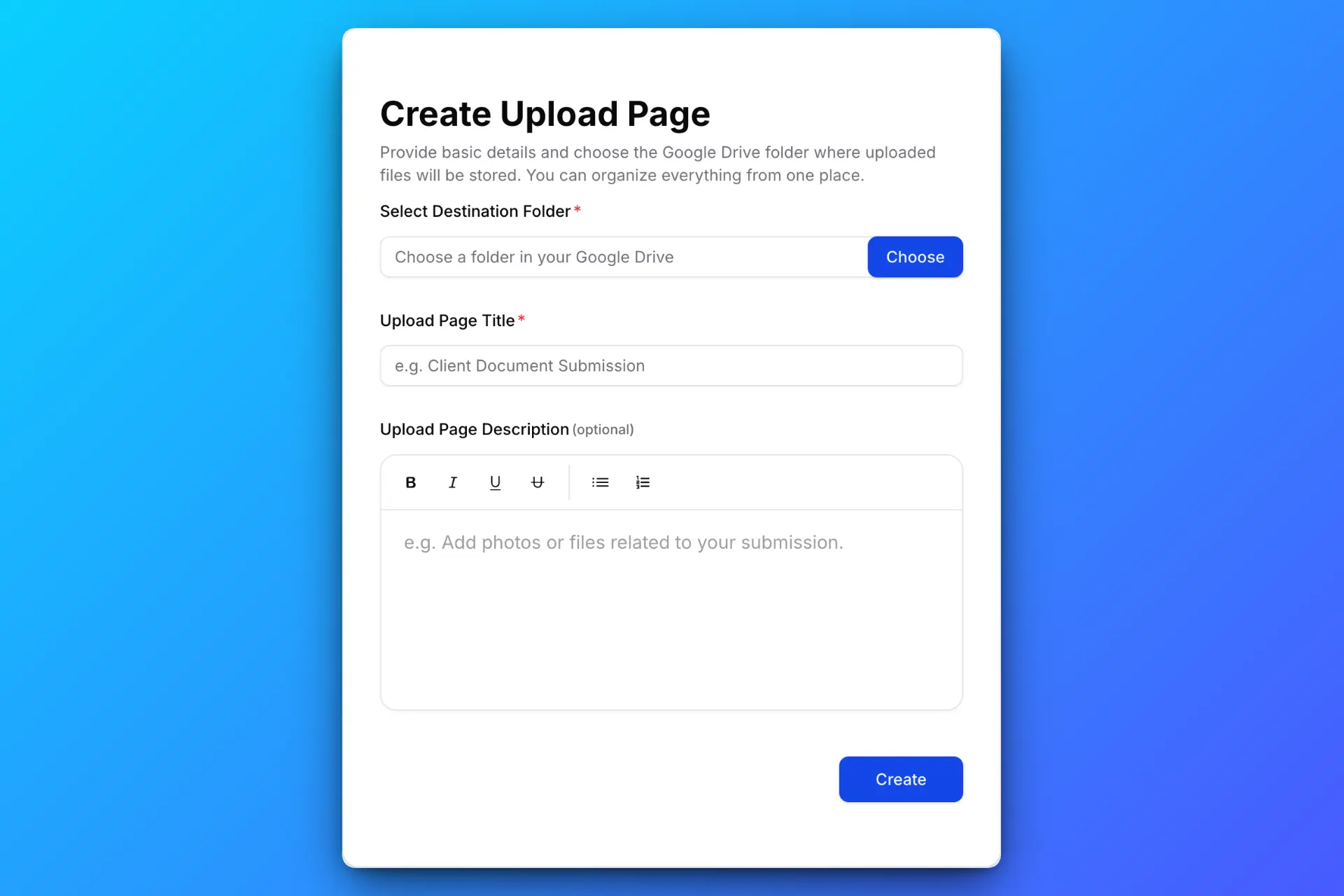
Choose a title and description, select a destination folder in your Google Drive, and configure upload rules such as file size limits or an expiration date. Once ready, SendToDrive generates a unique upload link for you.
If you need questions alongside the files, explore the Google Drive upload form builder and its Simple/Structured modes. Separate document fields require an active paid plan.
Step 2: Share Your Upload Link Anywhere

Send the upload link via email, chat apps, or embed it on your website. Uploaders don’t need a Google account and can upload files from any device.
Step 3: Let Others Upload Files Easily
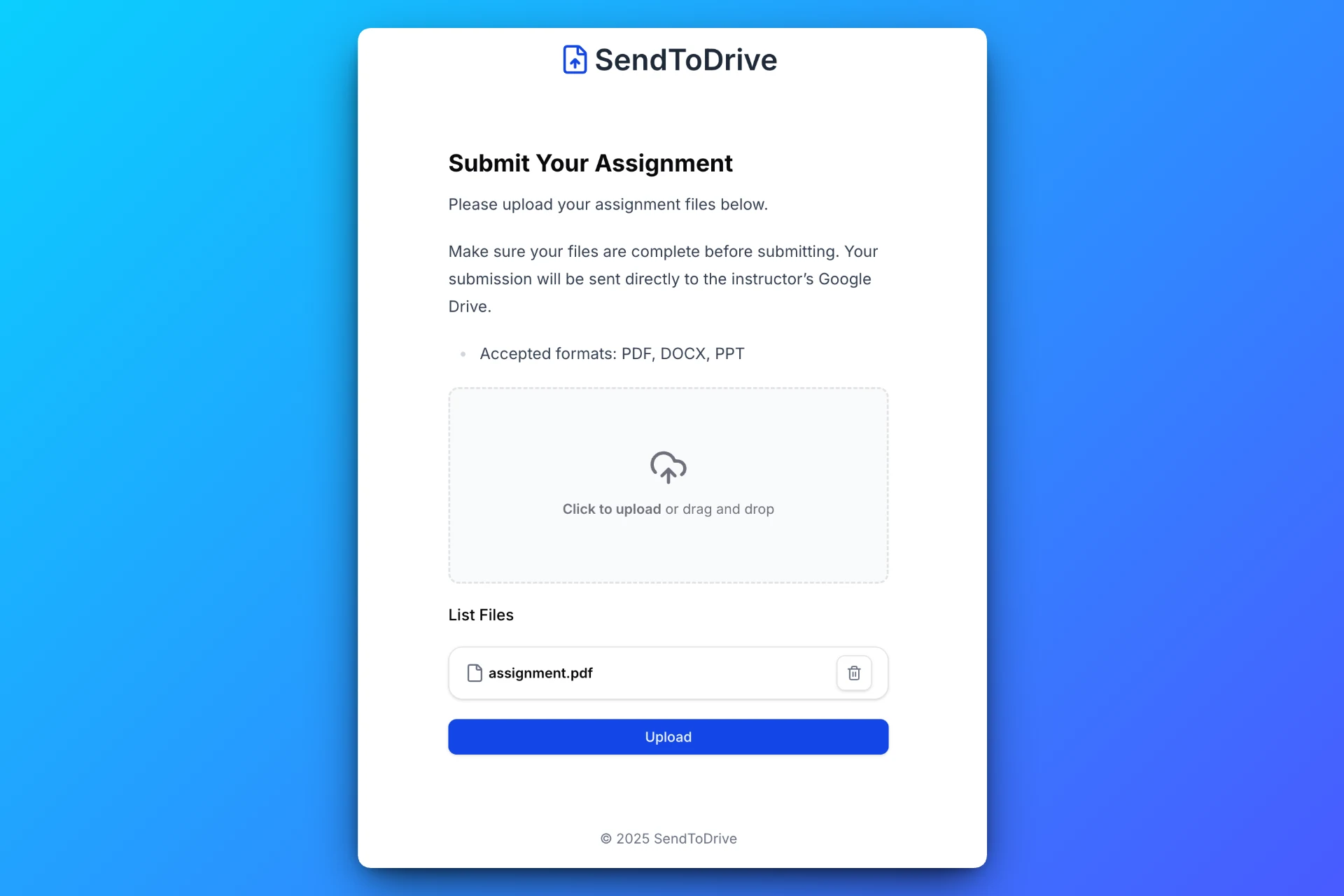
Guests open the page in their browser and select files. Passwords, access codes, required fields, file limits, and the page’s expiry can still apply.
Step 4: Receive Files Directly in Your Google Drive
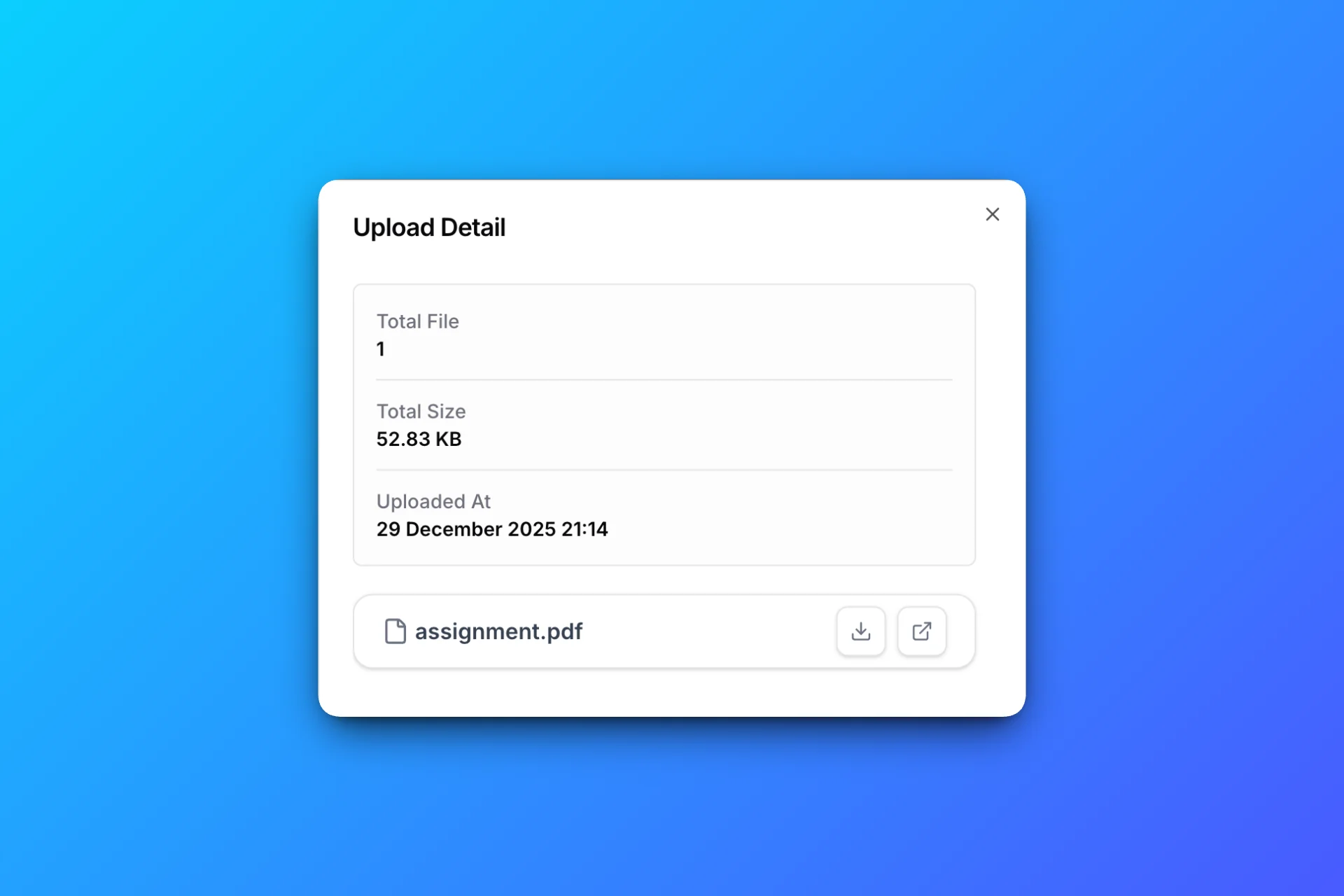
All uploaded files are automatically saved to your selected Google Drive folder, neatly organized and ready to use — no manual downloads required.
Benefits for Founders
Founders benefit from a streamlined upload process:
- Faster user onboarding
- Fewer support requests
- Cleaner internal workflows
A simple upload experience reflects a professional product.
Benefits for Educators
Educators gain:
- Easier assignment collection
- No Google account requirement for students
- Clear separation of submissions
This reduces administrative overhead and improves clarity.
Benefits for Small Businesses
Small businesses can:
- Collect client files securely
- Avoid email attachment limits
- Maintain consistent file organization
This leads to better client communication and fewer mistakes.
Security Best Practices for File Uploads
When allowing users to upload files to Google Drive, security should be a priority.
A good setup includes:
- Upload-only access
- Private Drive storage
- File type and size restrictions
- No shared folder visibility
Review the page’s access and file rules before sharing. Add passwords or access codes when needed, and review any permissions granted separately in Drive.
Build vs Buy: Why a Dedicated Solution Makes Sense
Building your own upload system requires:
- Backend development
- Storage and security management
- Ongoing maintenance
Using a dedicated solution like SendToDrive saves time and lets your team focus on core work instead of infrastructure.
FAQs About Allowing Users to Upload Files to Google Drive
Can users upload files without a Google account?
Yes. With SendToDrive, users can upload files without logging in.
Is it safe to allow external uploads?
The upload link does not expose a Drive file listing. Use appropriate page access controls and review separately granted Drive permissions for your situation.
Can uploads be organized automatically?
Yes. On a paid plan, enable submission subfolders or configure routing rules before collecting files.
Is this suitable for public use?
Yes. It works well for clients, students, and public submissions.
Do I need technical skills to set this up?
No. SendToDrive is designed to be simple and requires no coding.
Conclusion
Allowing users to upload files to Google Drive does not have to involve shared folders, login requirements, or email attachments. A dedicated upload flow provides better security, organization, and user experience.
SendToDrive offers a simple and reliable way to allow users to upload files to Google Drive without permission headaches or manual work. For founders, educators, and small businesses, this approach saves time and creates a more professional workflow.