How to Receive Files from Clients Easily
Receiving files from clients sounds simple—until you actually try to do it at scale. Missing attachments, expired links, permission requests, and oversized files quickly turn a small task into a constant follow-up process.
If you regularly work with clients, there is a much easier way to collect files from clients without slowing them down or cluttering your inbox.
Why Collecting Files from Clients Is Often Painful
Most client file collection still relies on methods that were never designed for external users.
Common issues include:
- Clients forget to attach files in emails
- Attachments fail due to size limits
- Shared folders trigger access requests
- Clients don’t have the “right” account
- Files arrive scattered across conversations
Every extra step increases the chance that clients delay or send the wrong files.
What an Easy Client File Collection Looks Like
An easier approach removes friction for both sides.
To collect files from clients smoothly, you need:
- One upload link per request
- No login required for clients
- No access to your internal folders
- Automatic file organization
Instead of asking clients to share files, you simply let them upload files.
How to Collect Files from Clients Step by Step
Create a Client Upload Page
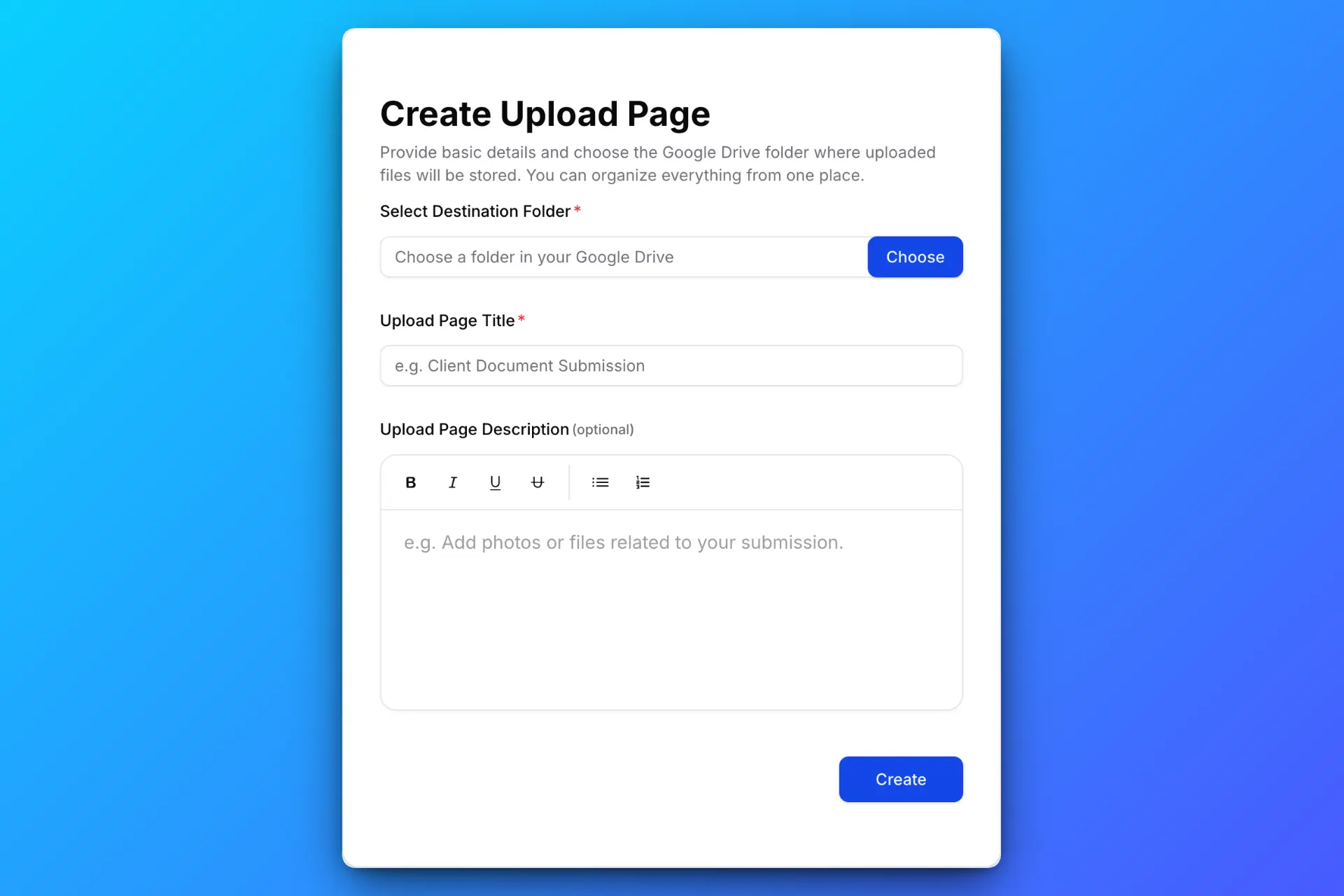
Create an upload page with a clear title and instructions so clients know exactly what to submit. Choose the destination folder in your Google Drive where all client files should go.
You can also set rules like file size limits, expiration dates, or password protection if needed.
Share the Upload Link with Your Client

Send the upload link via email, WhatsApp, or any messaging tool you already use. Clients don’t need a Google account and never see your Drive.
Clients Upload Files Without Confusion
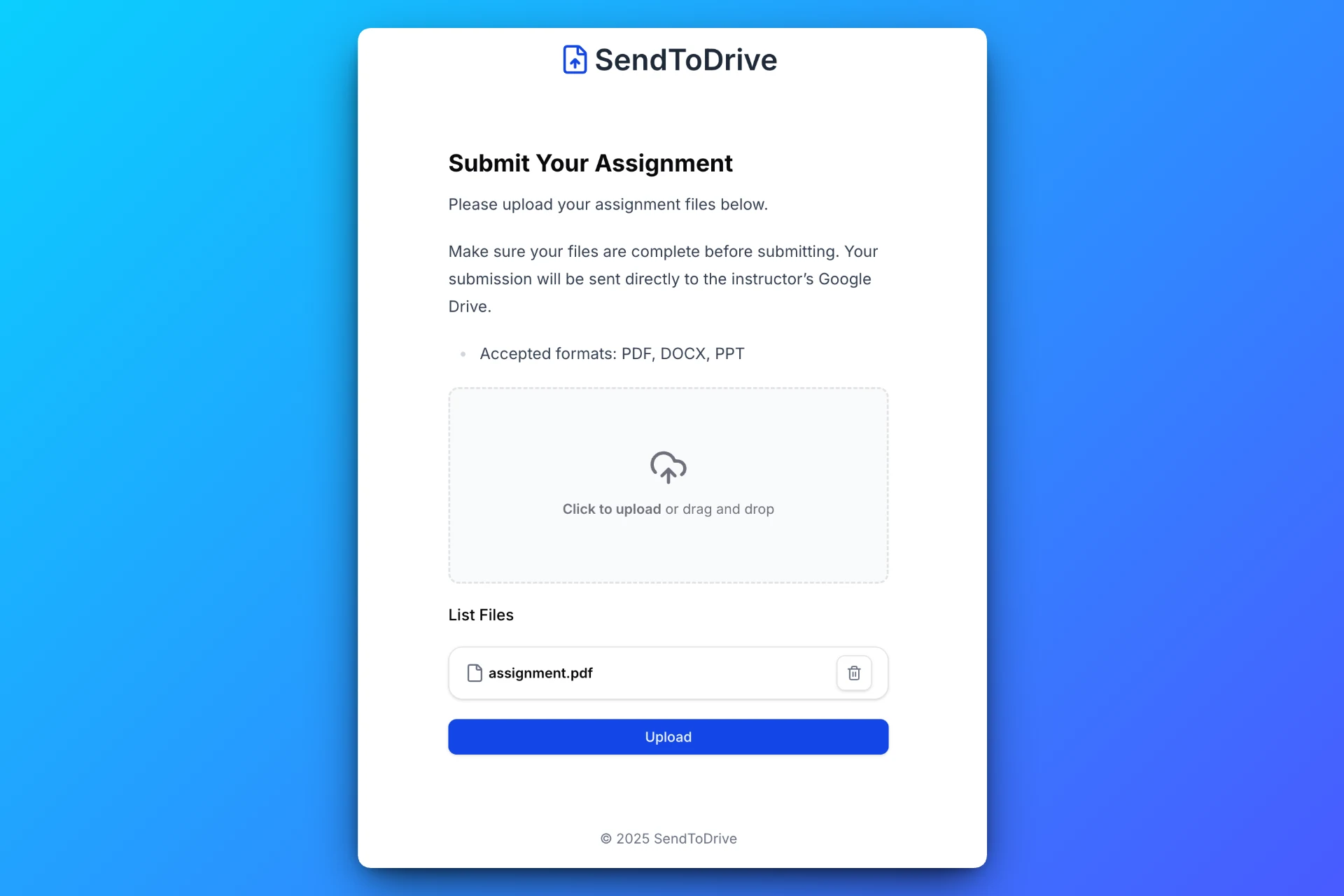
Clients see a simple upload form. They can drag and drop files without worrying about permissions, folders, or sharing settings.
Files Go Directly to Your Google Drive
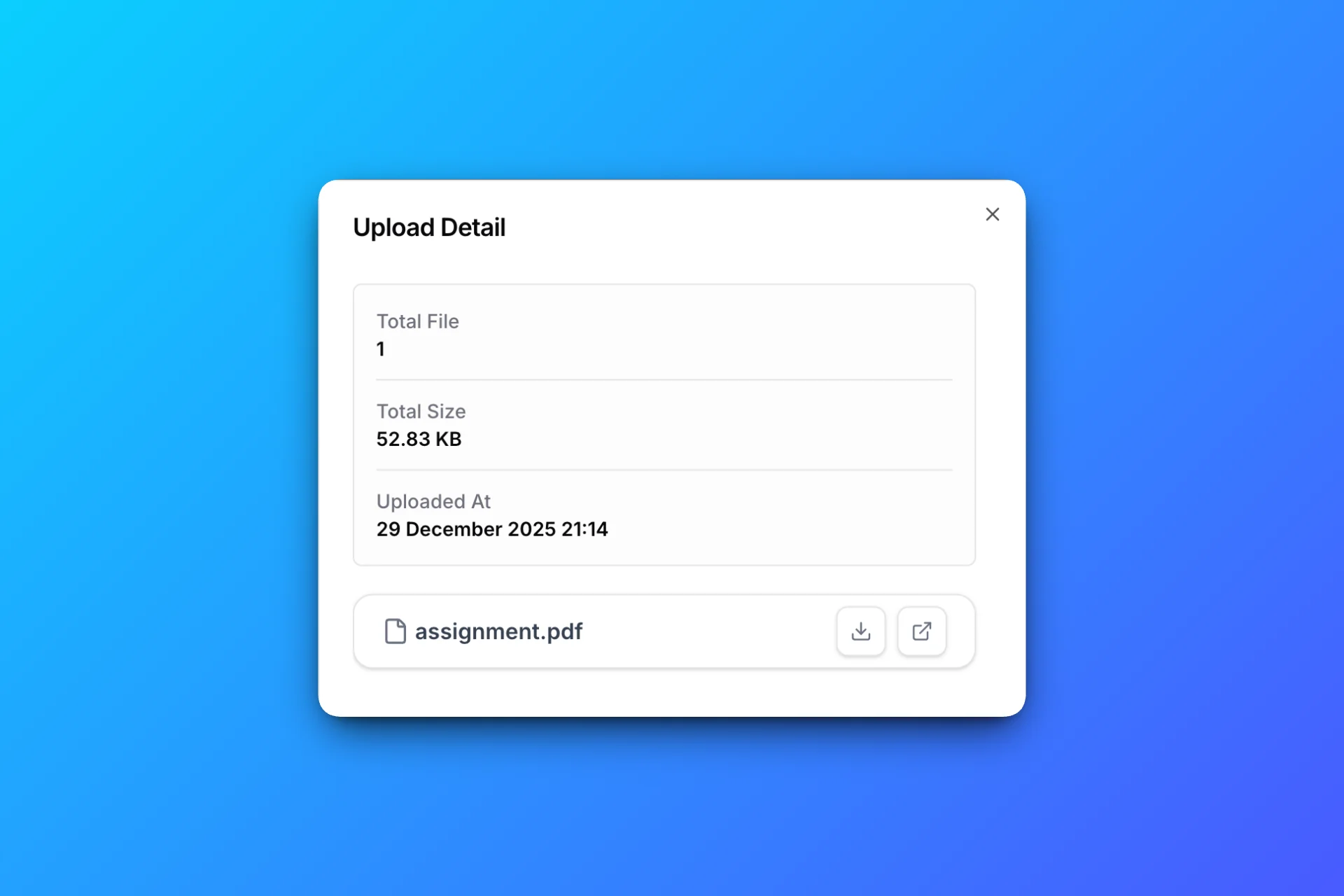
All uploaded files are automatically saved to your selected Google Drive folder, neatly organized and ready to review.
Real Client Use Cases (Examples)
Creative Services
Designers, video editors, and agencies can collect briefs, assets, and feedback files without long email threads.
Finance & Accountancy
Accountants and financial advisors can request documents securely without clients needing to manage shared folders.
Real Estate
Agents can collect contracts, IDs, and property documents from buyers or sellers in one place.
Why Clients Prefer Upload Links
From the client’s perspective, upload links are simply easier.
Clients don’t need to:
- Create accounts
- Request access
- Learn new tools
- Worry about file visibility
They just open a link and upload the files.
Using SendToDrive to Collect Files from Clients
SendToDrive is built to make client file collection simple and professional.
With SendToDrive, you can:
- Create upload links in minutes
- Collect files from clients without logins
- Keep your Google Drive private
- Automatically organize incoming files
It works well for freelancers, agencies, consultants, and small businesses that want a clean intake process.
Frequently Asked Questions
Do clients need an account to upload files?
No. Clients can upload files without creating an account.
Can I limit what clients upload?
Yes. You can control file size, expiration, and add password protection if needed.
Is this secure for client documents?
Yes. Clients can upload files but cannot see your folders or other files.
Where are client files stored?
Files are saved directly to your Google Drive folder.
Final Thoughts
Collecting files from clients doesn’t need to be complicated. A simple upload link removes friction, reduces follow-ups, and keeps everything organized.
👉 Try SendToDrive and start collecting files from clients the easy way.