How Do Print Shops Get Files from Clients? (Best Methods Compared)
Learn how print shops receive files from clients, compare email, cloud storage, and upload links, and discover a simpler way to collect large files without hassle.
Print shops receive files from clients every day—but not all methods are efficient.
Some rely on email, others use cloud storage, and a few use modern upload links. Each method has its pros and cons.
In this guide, you'll learn how print shops get files from clients—and the easiest way to streamline the entire process.
1. Email Attachments (Most Common)
Many print shops still ask clients to send files via email.
How it works:
- Client attaches files (PDF, AI, PSD, etc.)
- Sends them to the print shop’s email
Pros:
- Simple and familiar
- No setup required
Cons:
- File size limits (usually 20–25 MB)
- Hard to manage multiple revisions
- Files get buried in long email threads
👉 Best for: Small files and quick jobs
2. Cloud Storage Links (Google Drive, Dropbox)
Some print shops ask clients to upload files to cloud storage and share a link.
How it works:
- Client uploads files to Google Drive or Dropbox
- Shares a link with the print shop
Pros:
- Supports large files
- Easy to organize folders
Cons:
- Requires proper permission settings
- Clients may need accounts
- Risk of wrong access (view/edit issues)
- Not user-friendly for non-technical clients
👉 Best for: Medium to large projects
3. USB or In-Person Transfer (Outdated)
Some clients still bring files directly to the print shop.
Pros:
- Works without internet
- Simple for local customers
Cons:
- Not scalable
- Time-consuming
- Inconvenient for remote clients
👉 Best for: Walk-in customers only
The Problem with Traditional Methods
As your print business grows, these methods start to break:
- Too many emails to manage
- Confusing file versions
- Clients struggle with uploads
- Risk of missing or lost files
- Unprofessional workflow
This creates friction—for both you and your clients.
Better Approach: Receive Files via Upload Link
A modern workflow is much simpler:
- Create a file upload link
- Share it with your client
- Client uploads files without login
- Files go directly to your storage
No emails. No confusion. No friction.
Simple Alternative: Use SendToDrive
SendToDrive helps print shops collect files directly into Google Drive using a simple upload link.
For large artwork or project archives, check file size rules and Google Drive storage requirements before inviting clients to upload.
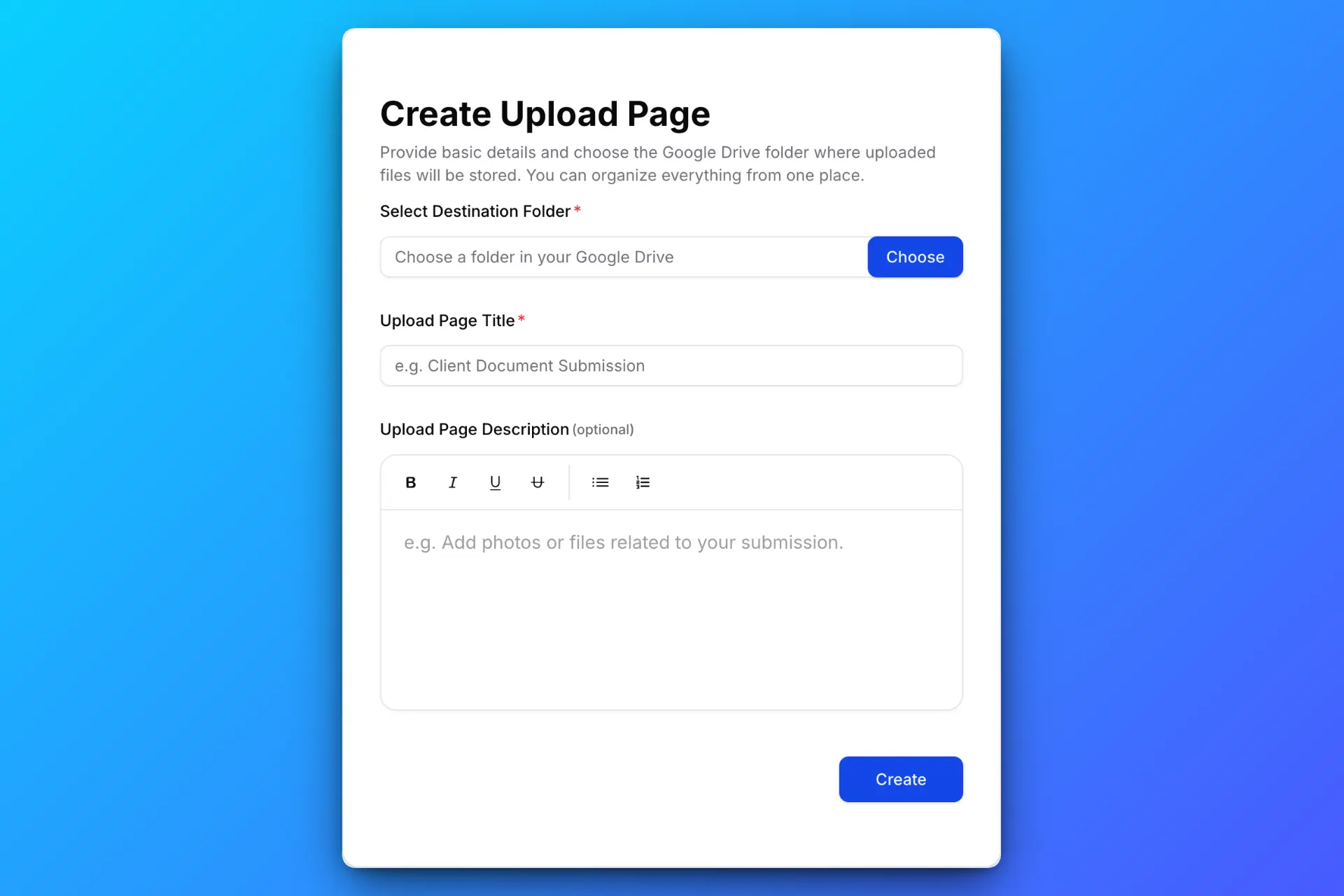
Step 1: Create Upload Page
Set a title, choose your Google Drive folder, and generate a link.
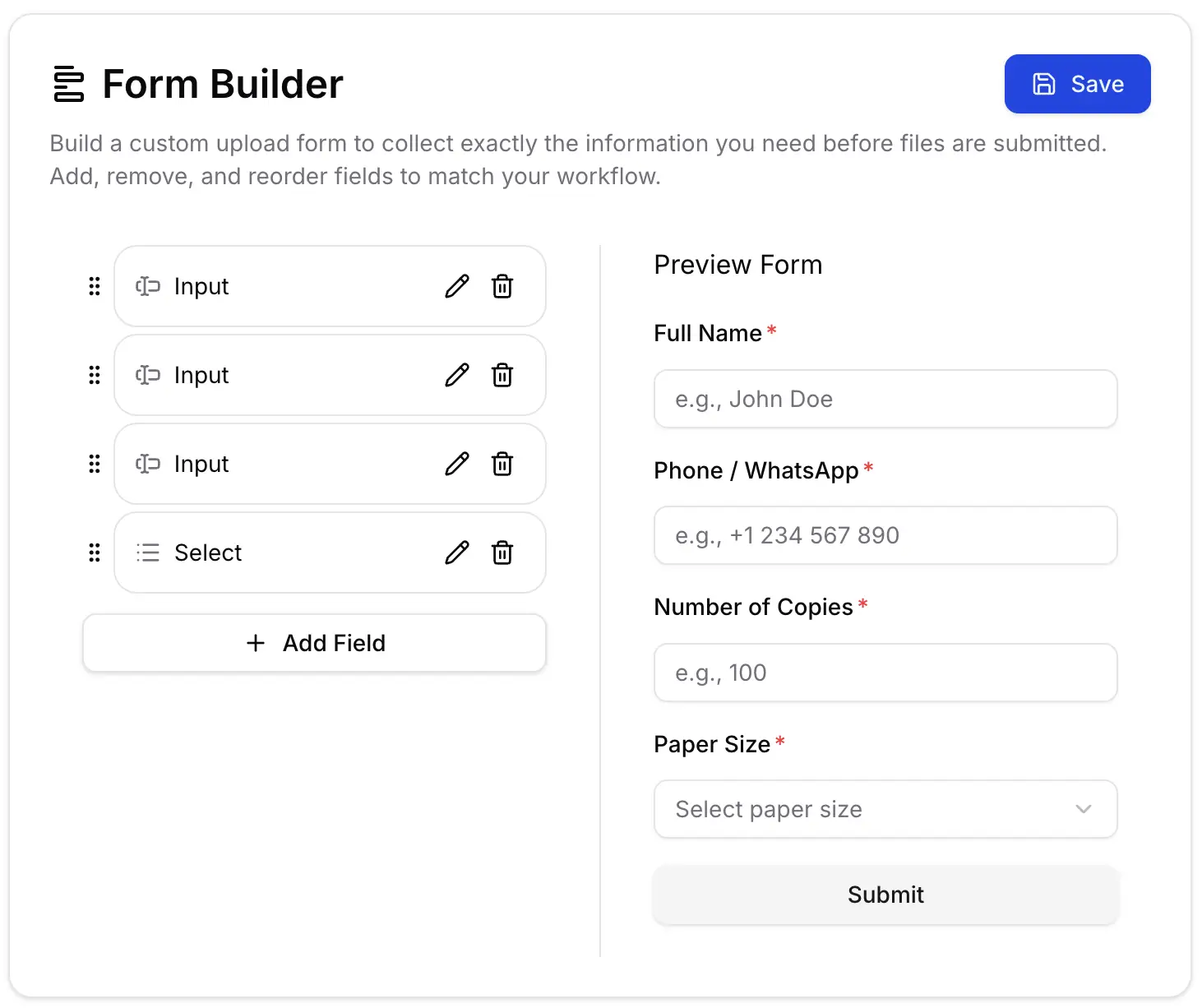
Step 2: Add Client & Print Details Form
Use the built-in form builder to collect important information from your clients, such as:
- Client name
- Contact information (email or phone)
- Print specifications (number of copies, paper size, finishing, etc.)
- Additional notes or instructions
Mark essential questions as required to request the information your team needs. Review the Google Drive upload form builder’s Simple and Structured options if you also need separate document fields. Structured mode requires an active paid plan; field rules do not inspect print quality or guarantee complete instructions.
Step 3: Share the Link
Send the link via email, WhatsApp, or add it to your website.

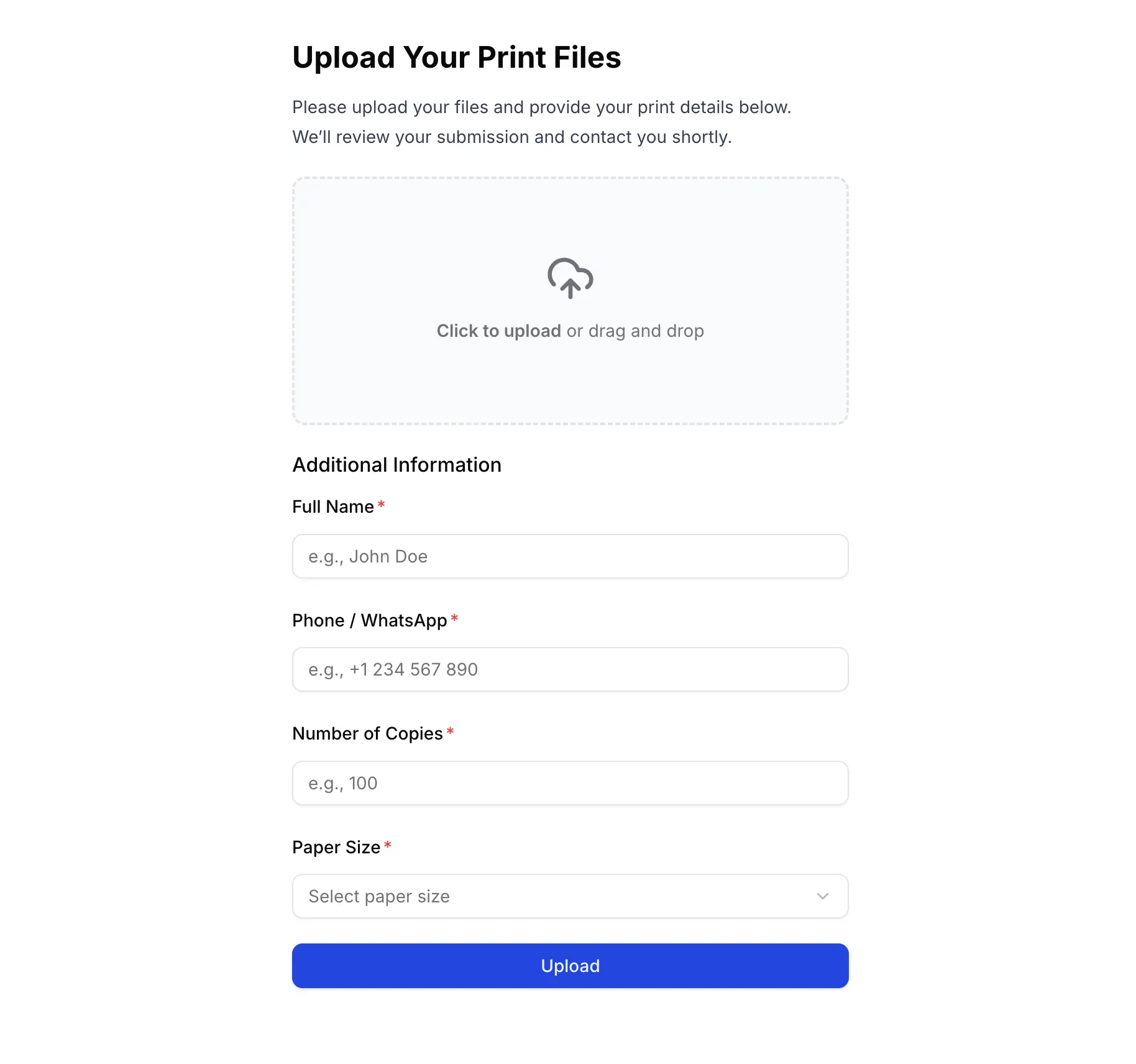
Step 4: Receive Files in Google Drive
Clients upload files without login, and everything is automatically saved to your Google Drive.
Why This Is Better for Print Shops
Compared to email or cloud links:
- Files go directly to Drive, subject to its limits, storage, and page rules
- No login required
- An upload link does not grant permission to browse existing Drive files
- No messy email threads
- More professional experience
It’s faster, cleaner, and easier to manage—especially for high-volume print shops.
Use Cases
Print Shops
Collect design files from customers without back-and-forth emails.
Designers & Agencies
Receive large assets from clients in one organized place.
Businesses
Accept marketing materials, brochures, and print-ready files easily.
Conclusion
So, how do print shops get files from clients?
- Email works—but doesn’t scale
- Cloud storage helps—but adds complexity
- Upload links provide the best experience
If you want a simple and professional way to receive files, upload links are the future.
👉 Try SendToDrive and start collecting files from clients effortlessly.