Upload Documents for Internal Review (Simple Workflow)
A simple and reliable workflow to upload documents for internal review without email attachments, shared folders, or permission issues.
Internal reviews are part of everyday work. Drafts, reports, proposals, and supporting documents move between teams before anything gets approved.
Yet many teams still rely on email threads or shared folders to manage this process. Files get mixed up, versions are unclear, and reviewers waste time searching for the right document.
There is a much simpler way to upload documents for internal review without adding complexity to your workflow.
Why Internal Document Reviews Often Break Down
Even inside the same organization, document sharing can become messy.
Common problems include:
- Email attachments buried in long threads
- Multiple versions of the same document
- Shared folders with too many permissions
- Team members uploading files to the wrong place
- No clear separation between drafts and final files
When review cycles slow down, productivity drops.
What a Simple Internal Review Workflow Looks Like
A good internal review workflow should focus on clarity and control.
Ideally, it allows teams to:
- Upload documents to a single destination
- Avoid exposing full folder access
- Keep uploads organized automatically
- Reduce back-and-forth communication
- Work without extra tools or logins
Instead of sharing folders, teams use a controlled upload page.
How to Upload Documents for Internal Review
Create an Internal Upload Page
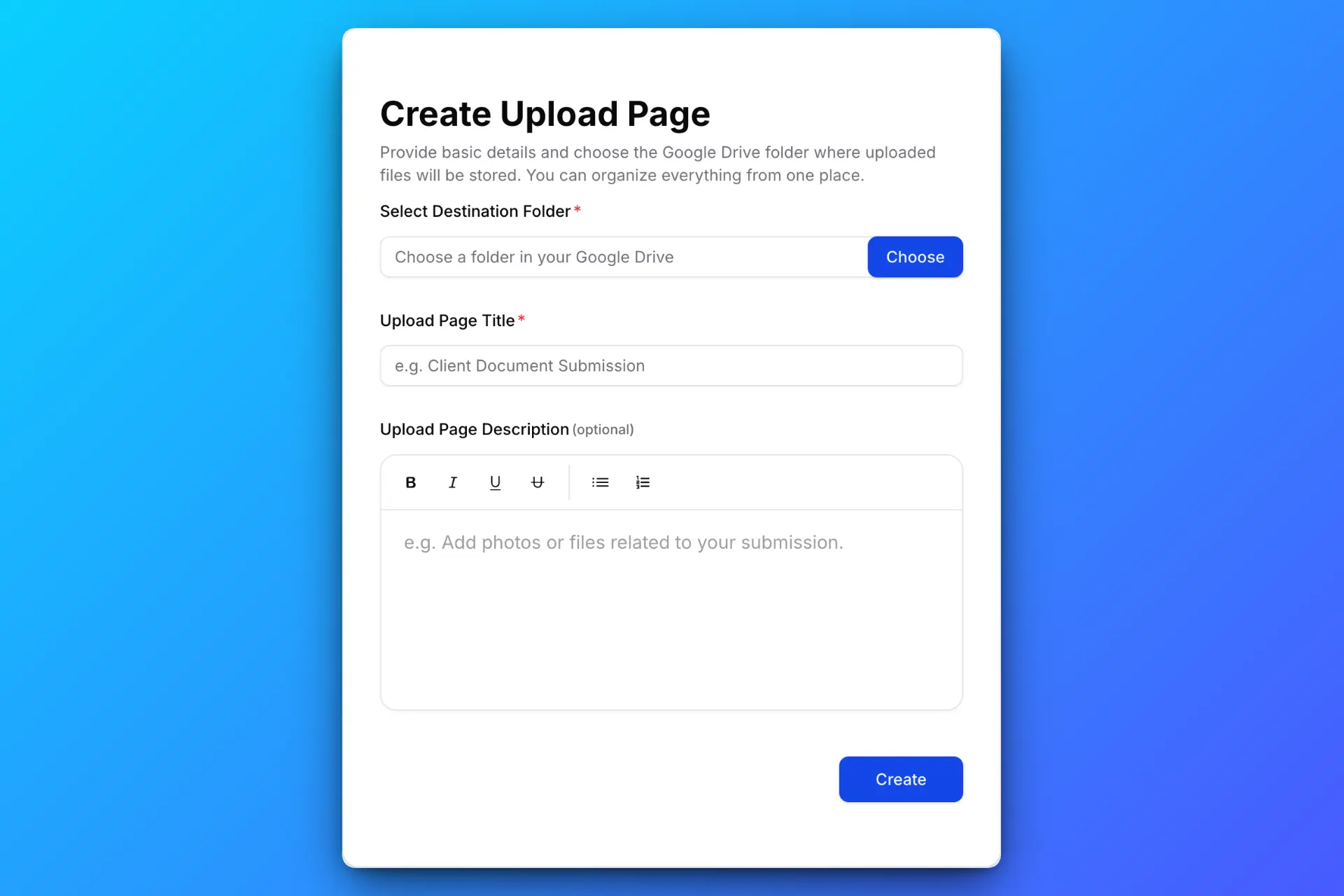
Create an upload page dedicated to internal reviews.
You can:
- Name the page after the project or review stage
- Add instructions (e.g. “Upload draft for review”)
- Choose a specific Google Drive folder
- Set file size limits or expiration dates
Once published, you’ll get a unique upload link.
Share the Upload Link with Your Team

Share the upload link via Slack, email, or your internal tools.
Team members do not need:
- Access to your Google Drive
- To request permissions
- To navigate complex folder structures
They simply open the link and upload.
Team Members Upload Review Documents
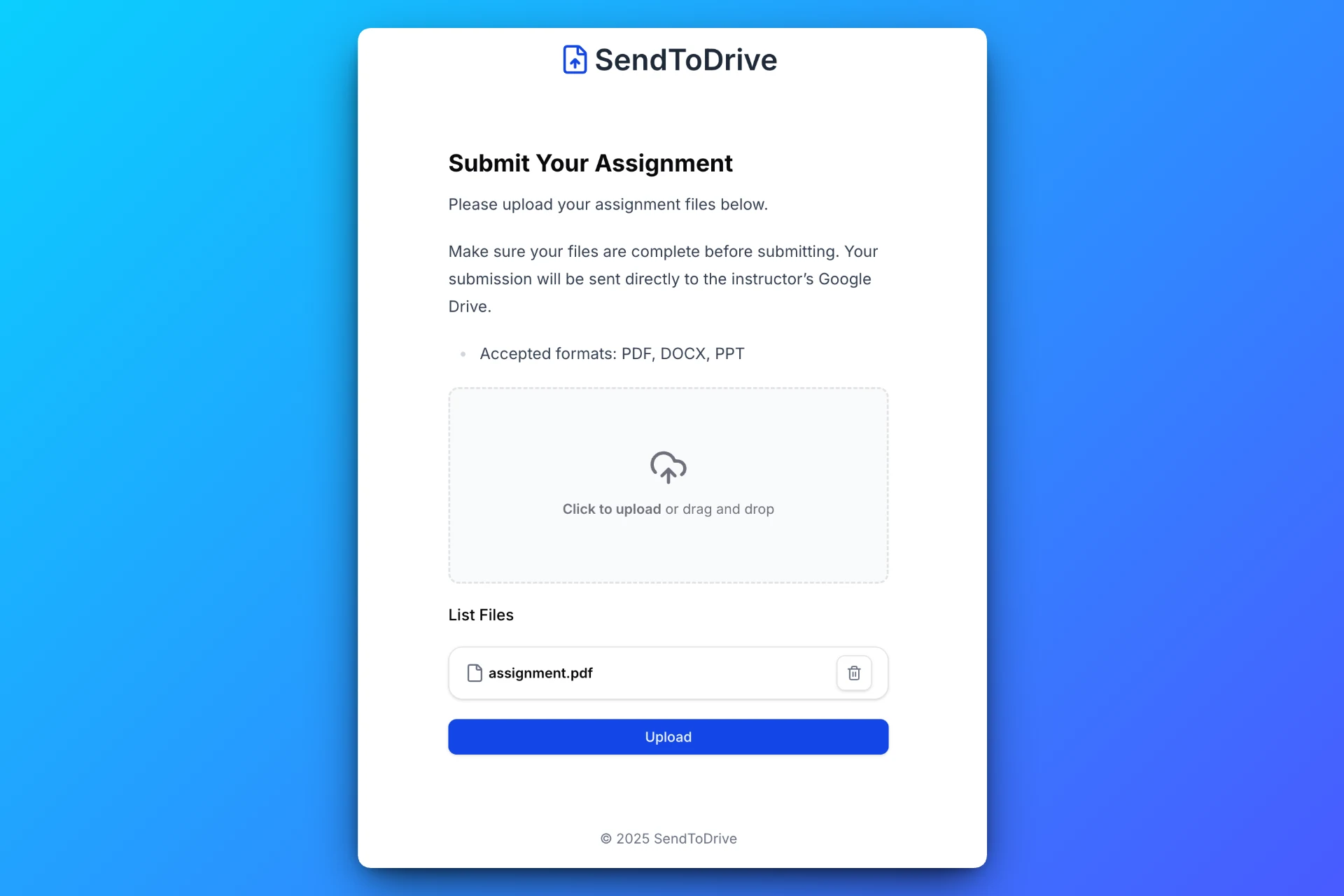
The upload interface is clean and focused. Team members can:
- Drag and drop documents
- Upload multiple files at once
- Submit drafts without seeing other files
This helps avoid accidental edits or deletions.
Documents Are Stored in Google Drive Automatically
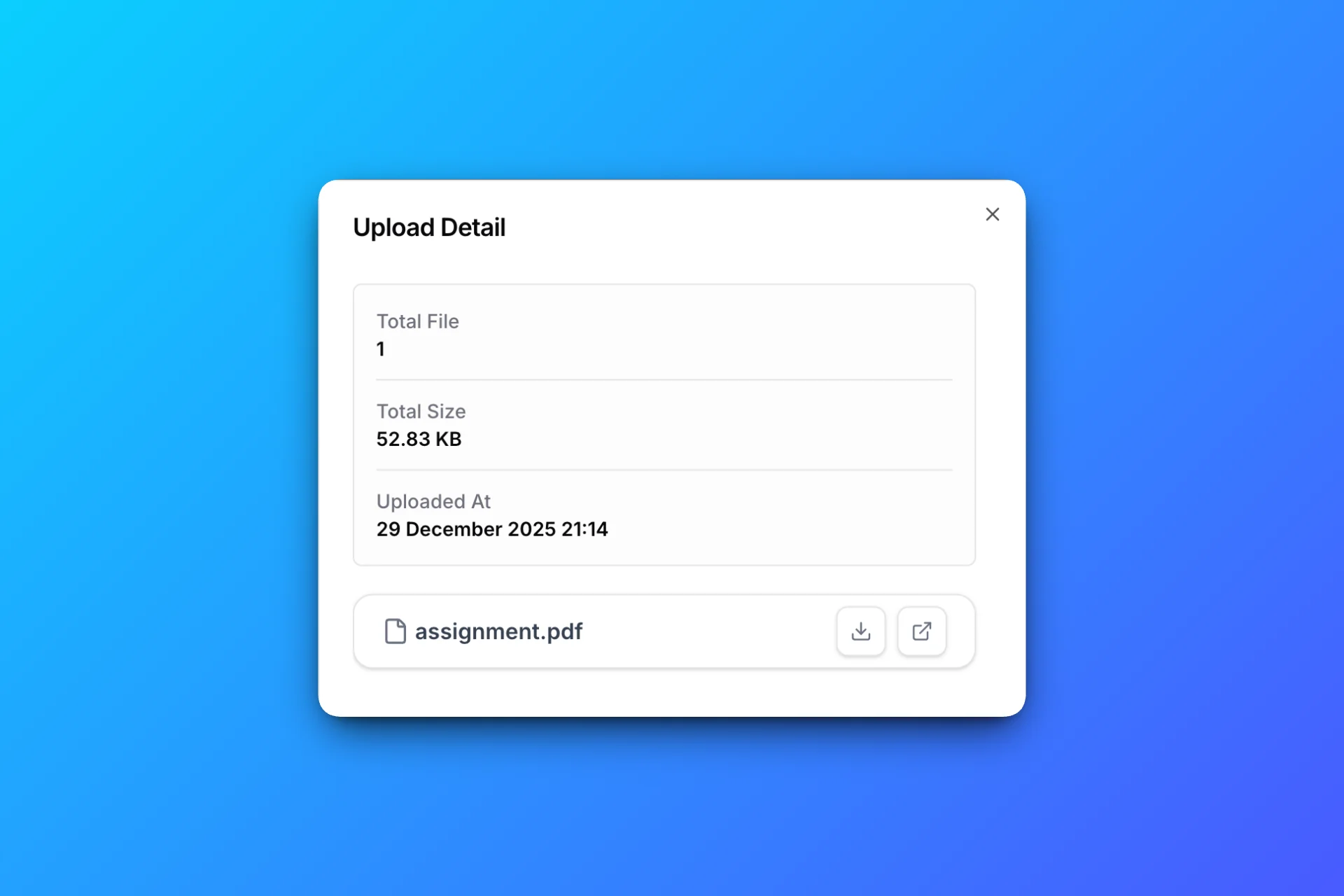
All uploaded documents are saved directly to your selected Google Drive folder, organized and ready for review.
No downloading, re-uploading, or manual sorting required.
Where This Workflow Works Best
Product & Operations Teams
Collect specs, reports, and internal proposals.
Marketing Teams
Review drafts, content assets, and campaign materials.
Finance & Admin Teams
Gather internal documents for approval and audits.
Why Upload Links Beat Shared Folders for Internal Review
| Shared Folder | Upload Link |
|---|---|
| Broad access permissions | Upload-only access |
| Risk of accidental edits | Files stay protected |
| Folder clutter | Clear submission point |
| Confusing for some users | Simple upload flow |
Why Use SendToDrive for Internal Reviews
SendToDrive helps teams simplify internal document workflows:
- Upload-only pages
- Direct Google Drive integration
- No login required for uploaders
- Optional password protection
- Fast setup without IT overhead
It keeps internal reviews focused on content, not file management.
Frequently Asked Questions
Do team members need a Google account?
No. Uploaders do not need Google Drive access.
Can I use this for different review stages?
Yes. You can create separate upload links for drafts, revisions, or approvals.
Are files visible to other uploaders?
No. Each uploader can only submit files, not view existing ones.
Can I disable the link after review is done?
Yes. You can set expiration dates or disable the link anytime.
Final Thoughts
Internal document reviews should be efficient, not chaotic. A simple upload link keeps files organized, reduces confusion, and speeds up collaboration.
👉 Try SendToDrive and streamline your internal document review workflow.