Allow Others to Upload Files to Google Drive (No Sign-In Required)
Google Drive is excellent for storage and collaboration — but it isn’t designed for collecting files from other people.
If you’ve ever tried to allow others to upload files to your Google Drive, you’ve probably run into issues such as sign-in requirements, confusing permissions, or shared folders exposing existing files.
This page shows a simpler and safer way to allow others to upload files to your Google Drive — without sign-ins, without folder sharing, and without permission risks.
Why Google Drive Makes File Uploads Complicated
Google Drive’s default approach is folder sharing. While it works for small teams, it quickly becomes impractical when you need to collect files from lots of people.
Common issues:
- Uploaders must sign in with a Google account
- Shared folders expose existing files
- Users can accidentally delete or edit files
- Not suitable for clients, applicants, or public uploads
If your goal is collecting files, folder sharing simply isn’t the right solution.
The Traditional Method: Sharing a Google Drive Folder
Google allows uploads by sharing a folder and granting edit access.
This works when:
- You know the uploader
- You trust them
- You only receive a small number of files
However, when collecting files at scale, this method becomes slow, risky, and difficult to manage.
A Better Way to Allow Others to Upload Files to Google Drive
Instead of sharing folders, you can use a dedicated upload link connected directly to your Google Drive.
With SendToDrive, you create a single upload page and share the link with anyone. Uploaders can only upload files — nothing more.
They:
- Don’t need a Google account
- Can’t see your Drive folders
- Can’t edit or delete files
You remain fully in control.

How It Works
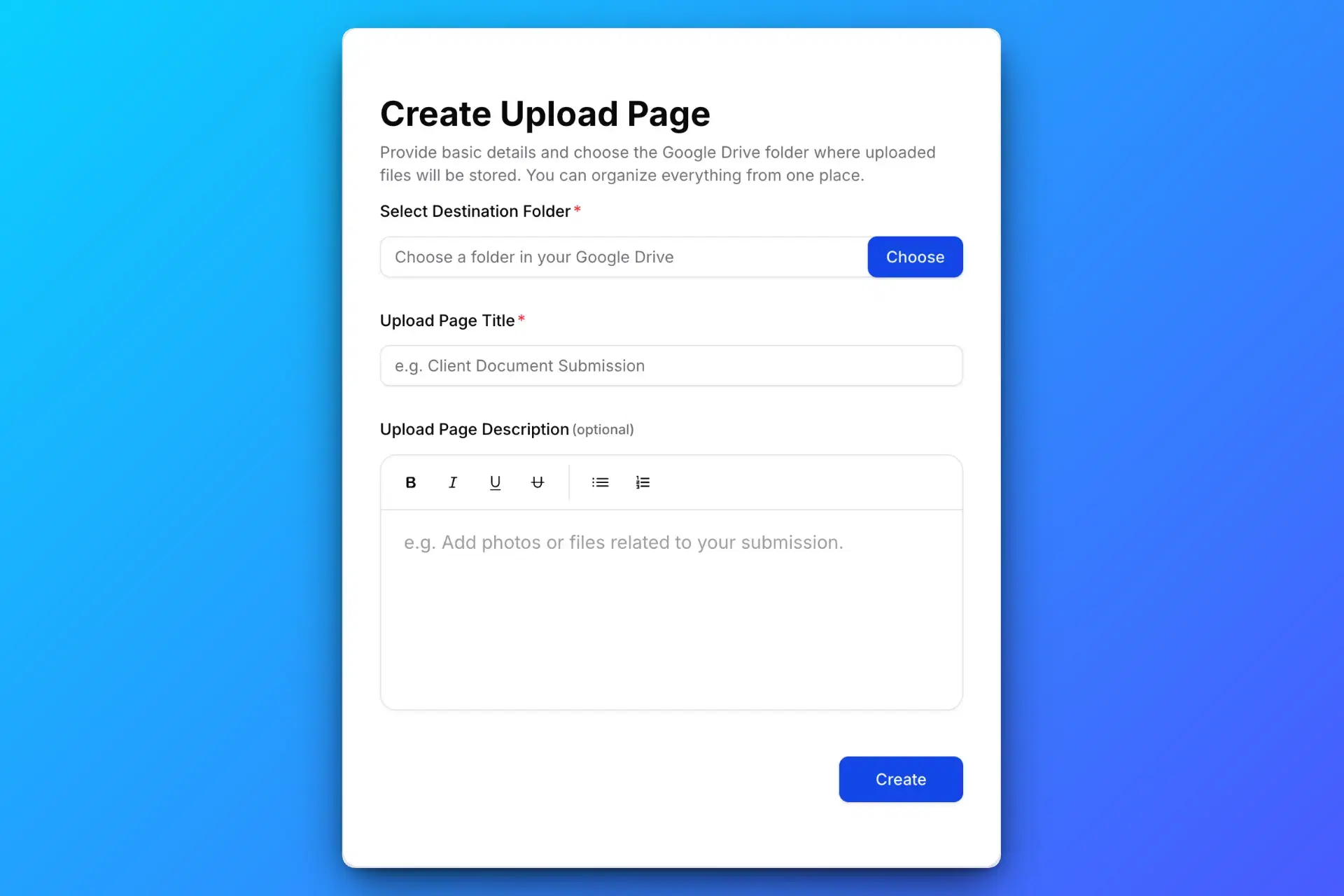
1. Create a Google Drive Upload Page
Create a secure Google Drive upload page using SendToDrive to collect files in one place.
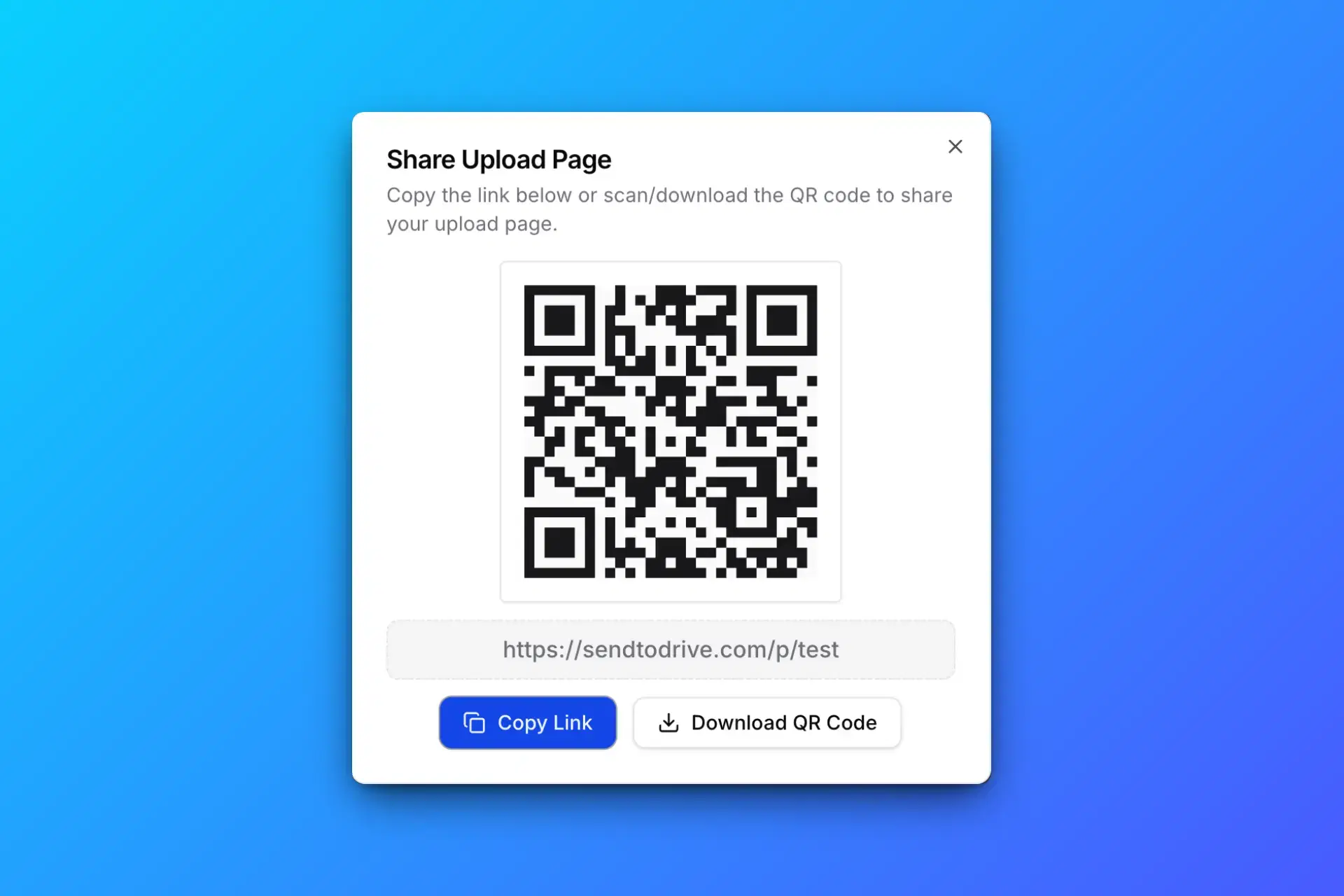
2. Share the Upload Link or QR Code
Share your Google Drive upload link or QR code with clients, teams, or anyone who needs to upload files.
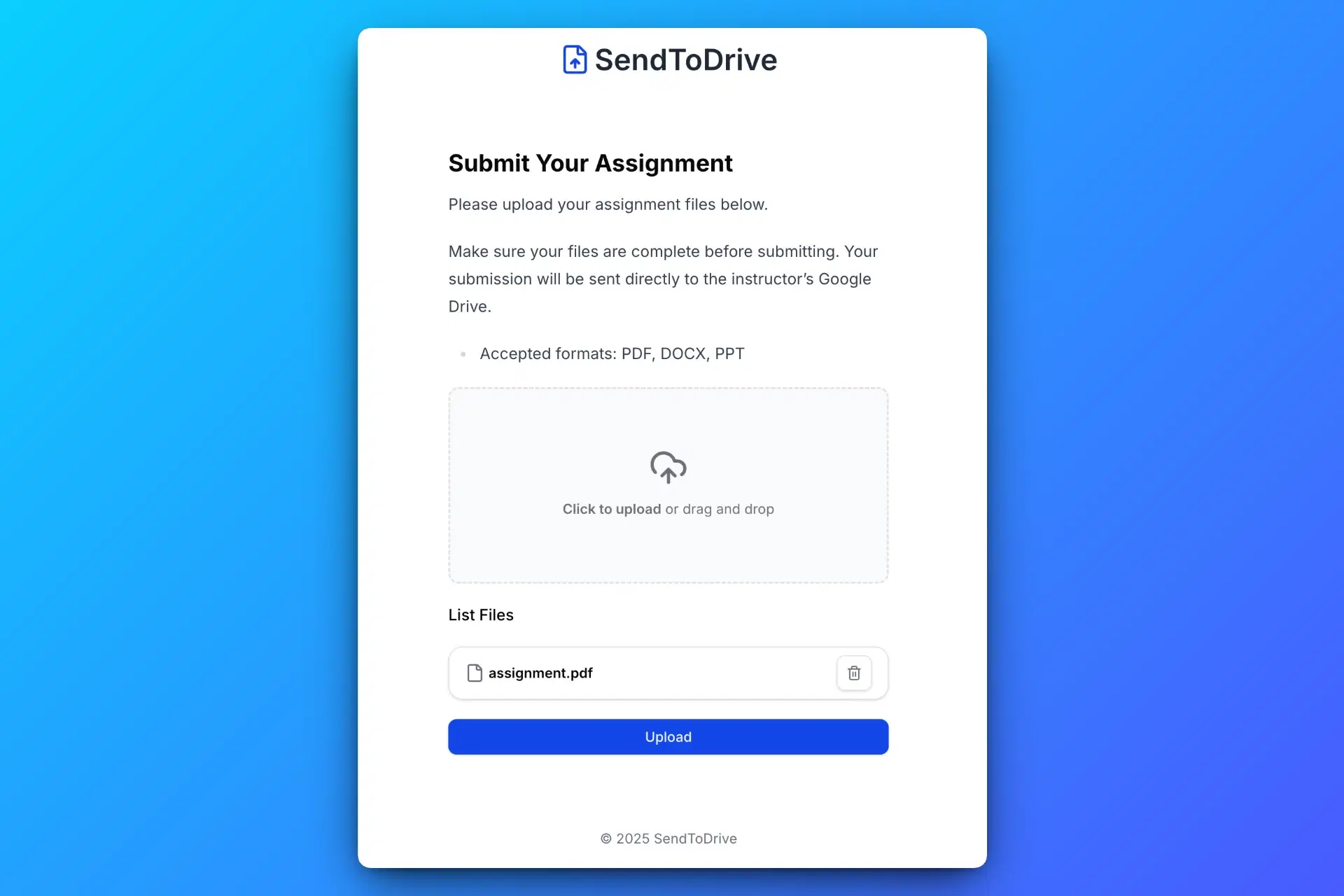
3. Others Upload Files Without Signing In
Anyone with the link or QR code can upload files to your Google Drive without signing in or requesting access.
4. Receive Files Directly in Your Google Drive
All uploaded files are automatically saved to your Google Drive, organised and ready to use.
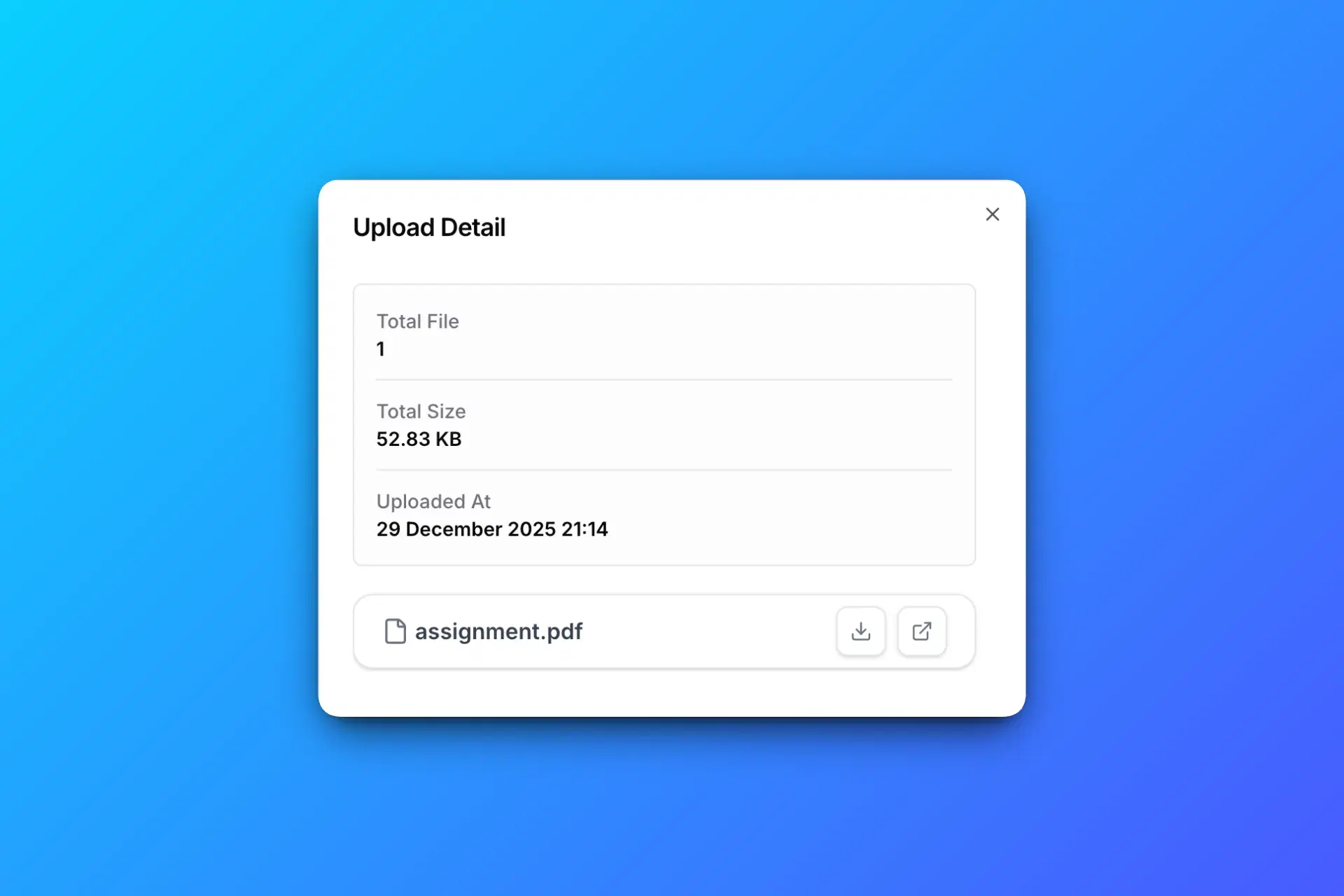
Every uploaded file goes directly into your Google Drive.
Upload Files Without Giving Folder Access
This is the biggest difference.
- Keeps your Drive private
- Prevents permission mistakes
- Ensures upload-only access
Perfect for safely collecting files from people you don’t know.
Common Use Cases
Clients & Customers
Collect documents, designs, or deliverables without email attachments.
Job Applications
Receive CVs and portfolios securely.
Students & Assignments
Allow uploads without Google accounts or sign-in issues.
Events & Offline Collection
Use QR codes to collect photos or files at events.
Is It Secure?
Yes.
- Files go directly to your Google Drive
- You remain the owner of the files
- Google Drive security and storage policies still apply
- Upload links can be disabled at any time
- No files are stored publicly or shared with other uploaders
Upload Link vs Folder Sharing
| Feature | Upload Link | Folder Sharing |
|---|---|---|
| Google sign-in required | No | Yes |
| View existing files | No | Yes |
| Risk of deletion | No | Yes |
| Best for collecting files | Yes | No |