How to Share an Upload Page with a Link or QR Code
Share a SendToDrive upload page by copying its public link or downloading its QR code from the Share dialog.
Every upload page has a public link and a QR code that point to the same uploader. Share either one so recipients can send files to your connected Google Drive without needing a SendToDrive account or access to your Drive.
Before sharing, make sure the upload page is active and its access, password, and expiration settings are appropriate for your recipients.
Step 1 — Open the upload page
Sign in to SendToDrive and open My Upload Pages. Select the upload page you want to share.
The page dashboard shows its destination folder and public link. Opening an existing page does not change its settings.
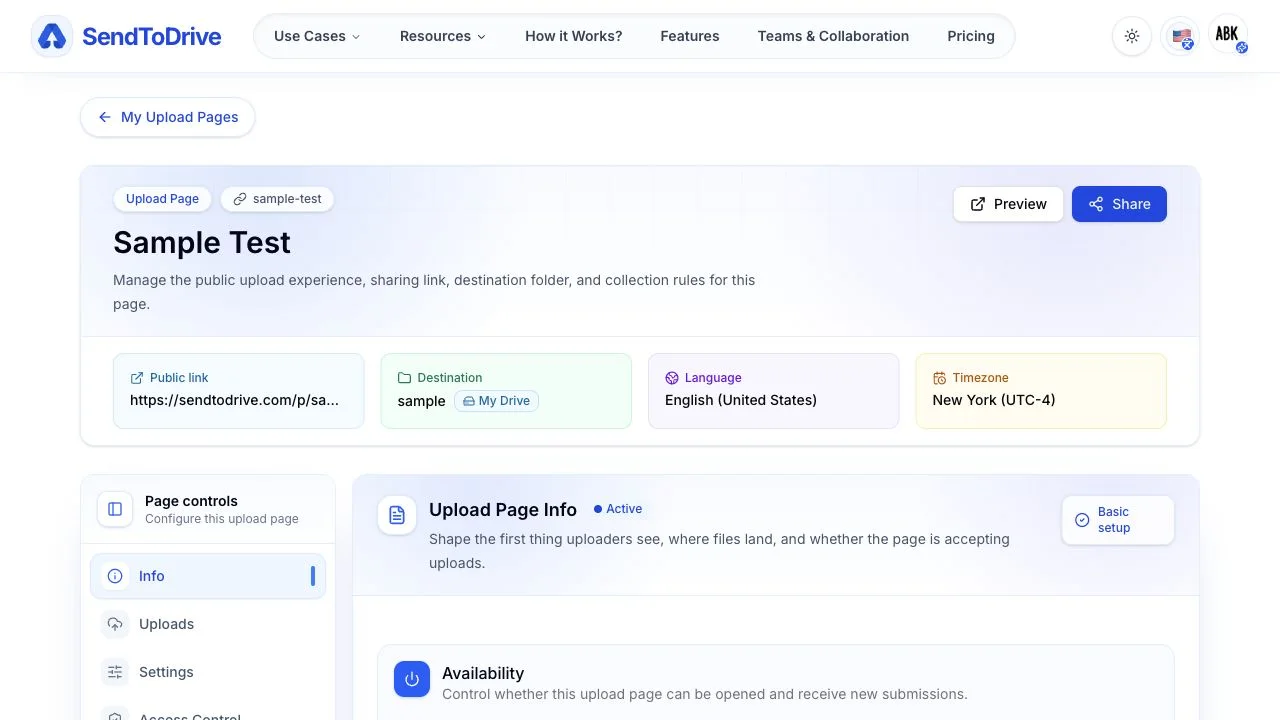
Step 2 — Open Share
Click Share at the top of the page. The Share Upload Page dialog displays a QR code and the page's Public link.
Both options open the same public uploader. The link remains the same when you edit the page's information or settings.
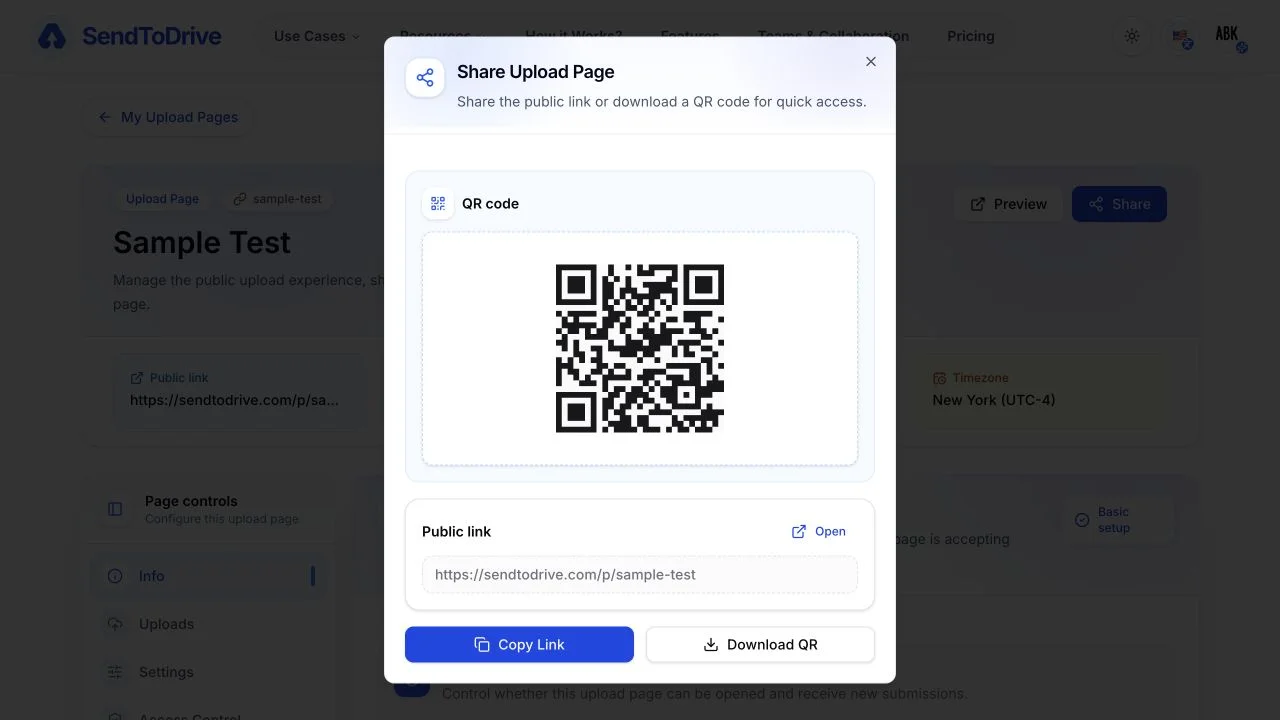
Step 3 — Copy the public link
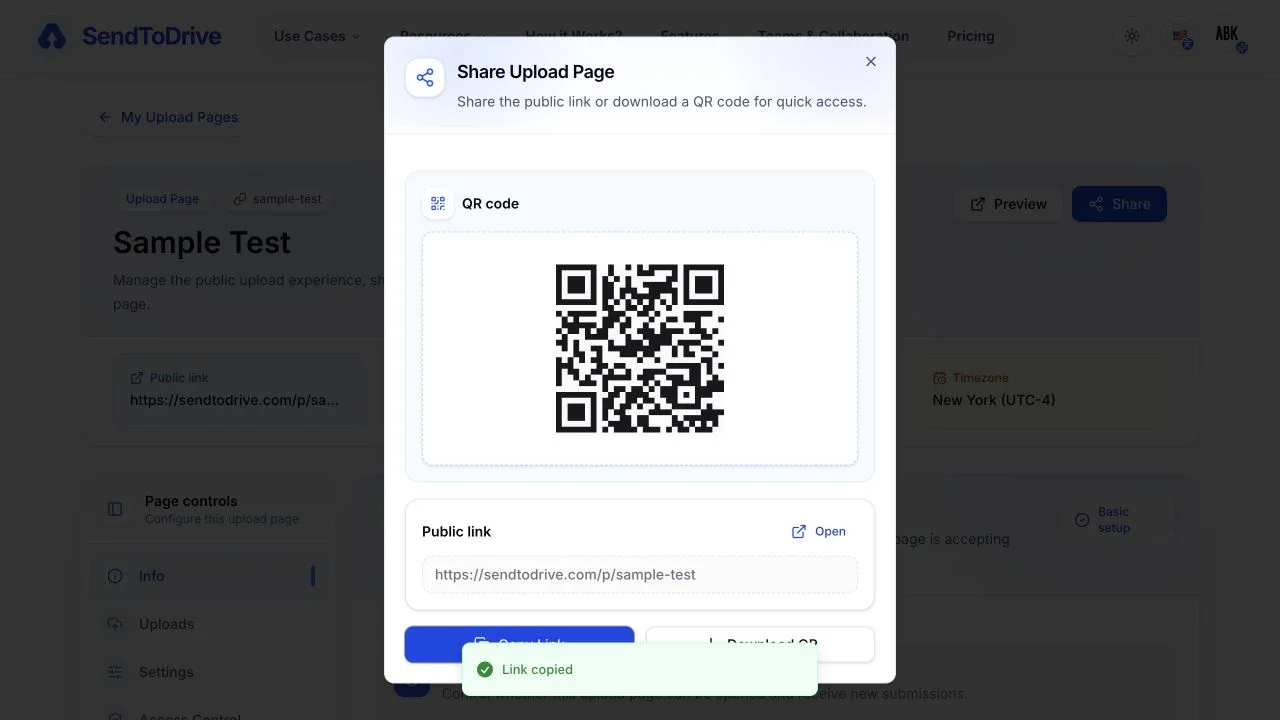
Click Copy Link. When Link copied appears, the public URL is ready to paste into an email, message, document, or website.
Copying the link only updates your clipboard; it does not change or publish new page settings. Use Open if you want to open the public link directly.
Step 4 — Download the QR code
Click Download QR to save the QR code as an image. You can add it to printed material, a presentation, a sign, or an event check-in area.
The QR code contains the same public link shown in the dialog. If you later replace the page with a different upload page, download and distribute its new QR code.
Step 5 — Preview before sharing
Close the dialog and click Preview, or click Open beside the public link. Check the uploader from a recipient's perspective before distributing it.
Confirm that the title, instructions, form fields, file rules, password prompt, and expiration behavior are correct. A valid link can still block uploads when the page is inactive, expired, or restricted by access rules.
What recipients can do
- Open the public upload page without a SendToDrive account.
- Submit files and requested form information under the page's configured rules.
- Upload to your connected Google Drive without receiving access to the destination folder.
- Use either the shared link or QR code to reach the same page.
Anyone who has the public link may be able to open the page. Use the page's access controls, password, expiration, or invite settings when the uploader should not be generally available.
Troubleshooting
If Share is not visible, return to My Upload Pages and open an existing upload page. The sharing actions are shown on the page dashboard.
If recipients can open the link but cannot upload, check whether the page is active and review its expiration, password, file, and access settings. Also confirm that the connected Google account can still use the destination folder.
If the copied link opens the wrong page, reopen Share on the intended upload page and copy its Public link again.