How to Reactivate an Expired Upload Page
Turn off expiration in an existing SendToDrive upload page so it can accept new submissions again without changing its public link.
If a SendToDrive upload page has expired, you usually do not need to create a replacement. You can keep the same public link, QR code, destination folder, and previous uploads.
An expiration date saved on the page can remain active after you upgrade your plan. To make the page accept submissions again, turn off expiration from its Settings menu.
Quick fix
- Sign in to SendToDrive.
- Open My Upload Pages.
- Select the expired upload page.
- Open Settings from Page controls.
- Find the Expiration section.
- Turn off Enable expiration.
- Click Update Settings.
After saving, reopen the public upload link and confirm that the page accepts submissions.
Step 1 — Sign in to SendToDrive
Go to sendtodrive.com/signin and sign in with the Google account that owns the upload page.
Use the same account that was connected when the page was created. A different account may not show the page in its dashboard.
Step 2 — Open the expired upload page
Open My Upload Pages, find the page marked as expired, and select it.
The page dashboard shows its public link and current status. You do not need a new page unless you intentionally want a different public link.
Step 3 — Open Settings
Select Settings from the Page controls menu.
Settings manages page behavior such as form fields, expiration, upload limits, file rules, file naming, the thank-you page, and password protection. Page information and the destination folder are managed separately from Info.
Step 4 — Turn off Enable expiration
Find the Expiration section and turn off Enable expiration.
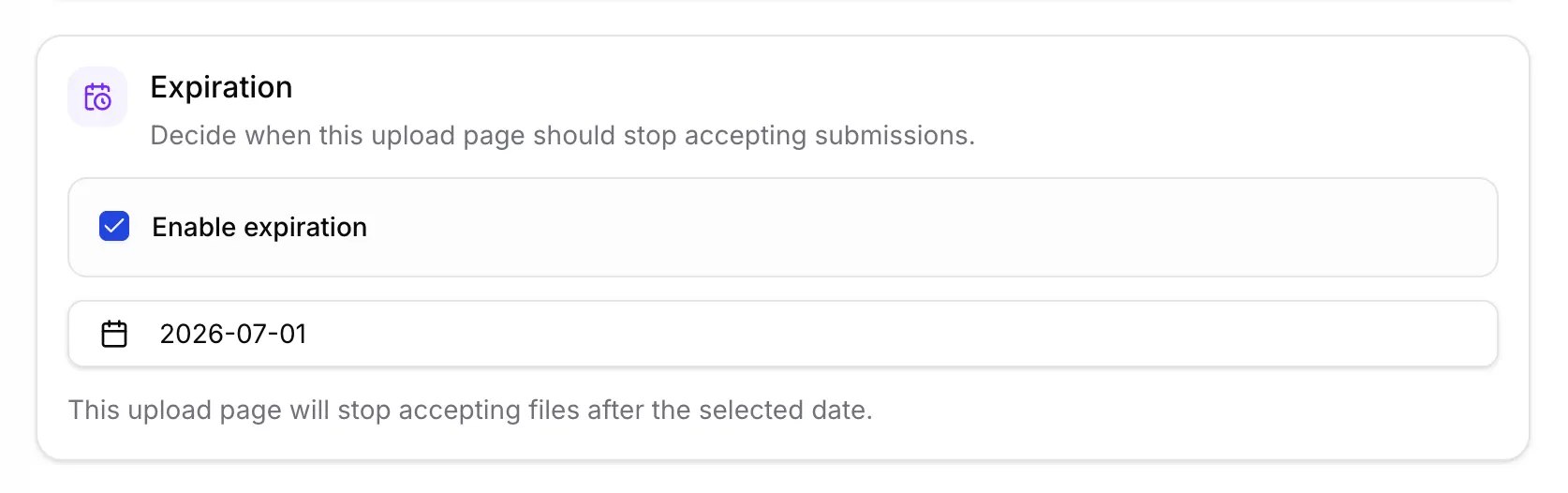
When expiration is enabled, the page stops accepting submissions after its selected date. Turning it off changes the status to Never expires.
Step 5 — Save with Update Settings
Scroll to the bottom of the Settings form and click Update Settings. Wait for the success confirmation before reopening the public page.
The existing public link and QR code remain unchanged.
Why a page can remain expired after upgrading
Upgrading changes the features available to your account, but it does not silently remove a date already saved on an existing page. This prevents an account change from unexpectedly modifying page behavior.
Turn off Enable expiration on the affected page and save the Settings form to remove that saved expiration rule.
If the page still appears expired
- Refresh the public upload page after saving.
- Confirm that Enable expiration is off.
- Confirm that you clicked Update Settings and saw a success message.
- Make sure you edited the correct upload page.
- Check whether the page is inactive or has another access rule that prevents submissions.
If the issue continues, contact SendToDrive support and include the upload page title or public link.
Summary
Use this path to reactivate the page:
My Upload Pages → select the page → Settings → turn off Enable expiration → Update Settings
Future submissions can use the same link and destination folder, while files already uploaded remain unchanged.