How to Upload Files to Google Drive (Step-by-Step Guide + An Easier Way to Collect Files)
Learn how to upload files to Google Drive step by step and discover a simpler way to collect files from others without logins, permissions, or email attachments.
Uploading files to Google Drive is quick and straightforward once you know the steps.
In this guide, you'll learn how to upload files to Google Drive step by step — plus a simpler way to collect files from other people without login or permission issues.
How to Upload Files to Google Drive
Uploading files to Google Drive is simple if you're doing it yourself.
Step 1: Open Google Drive
Go to https://drive.google.com and sign in to your Google account.
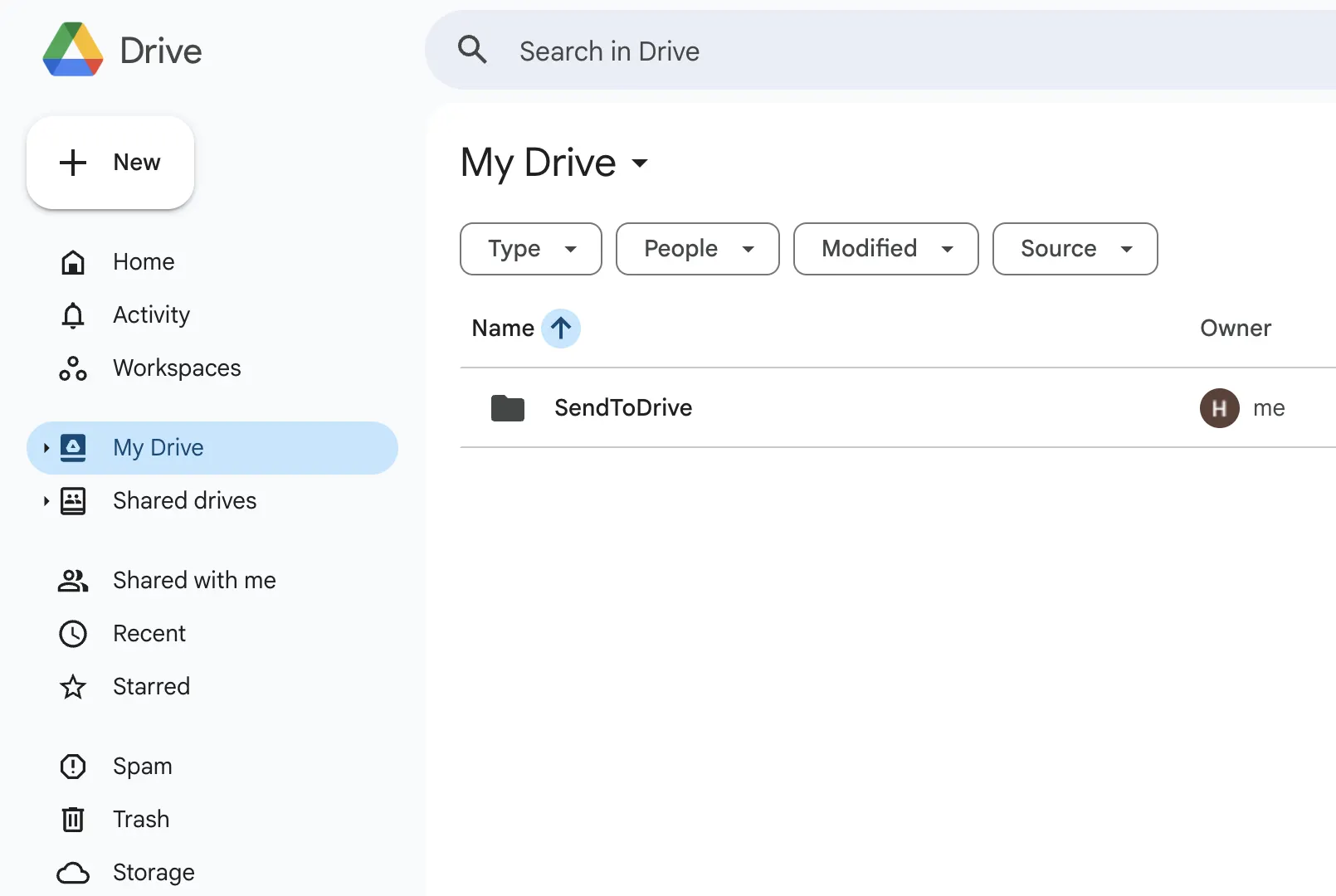
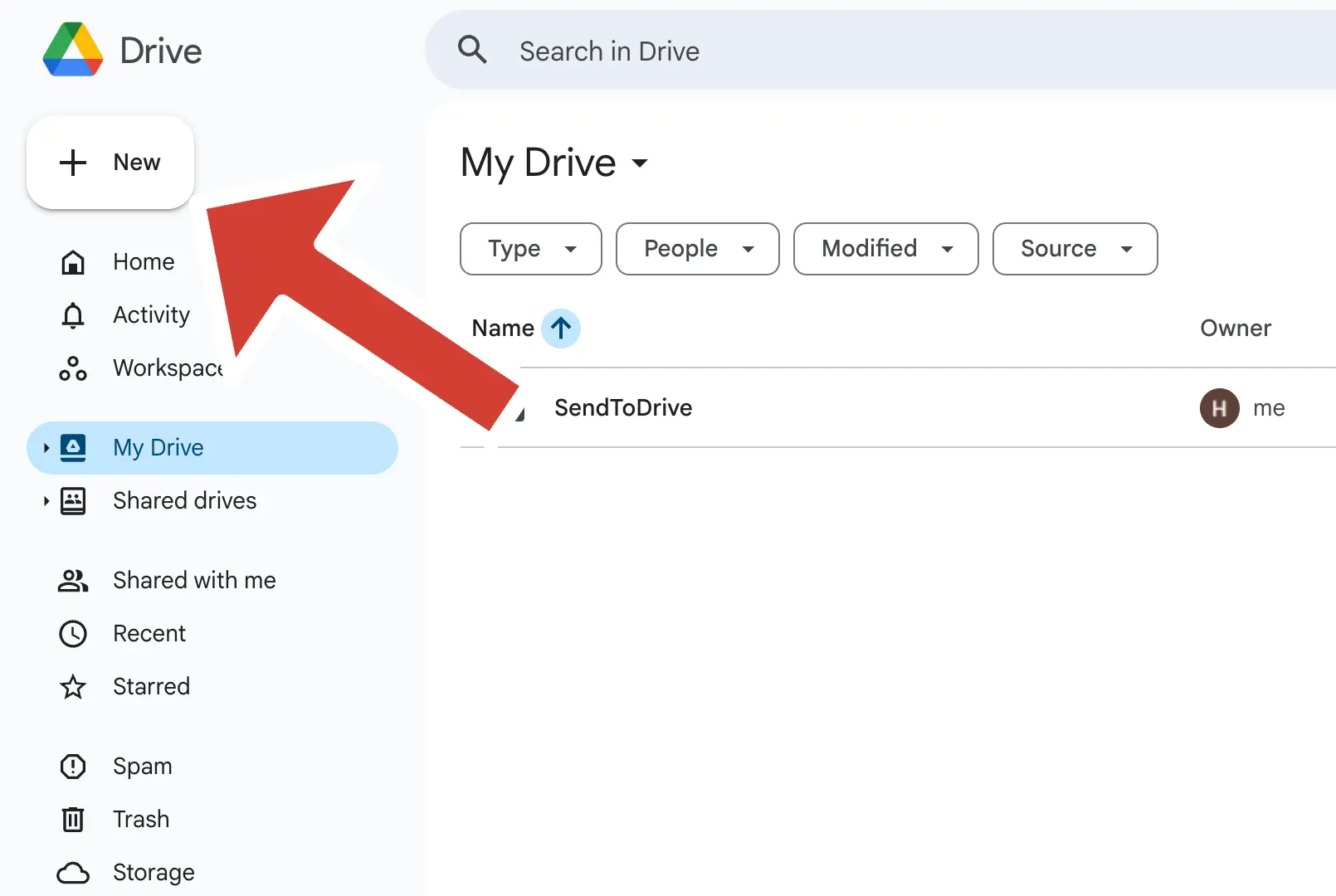
Step 2: Click "New"
In the top-left corner, click the "New" button.
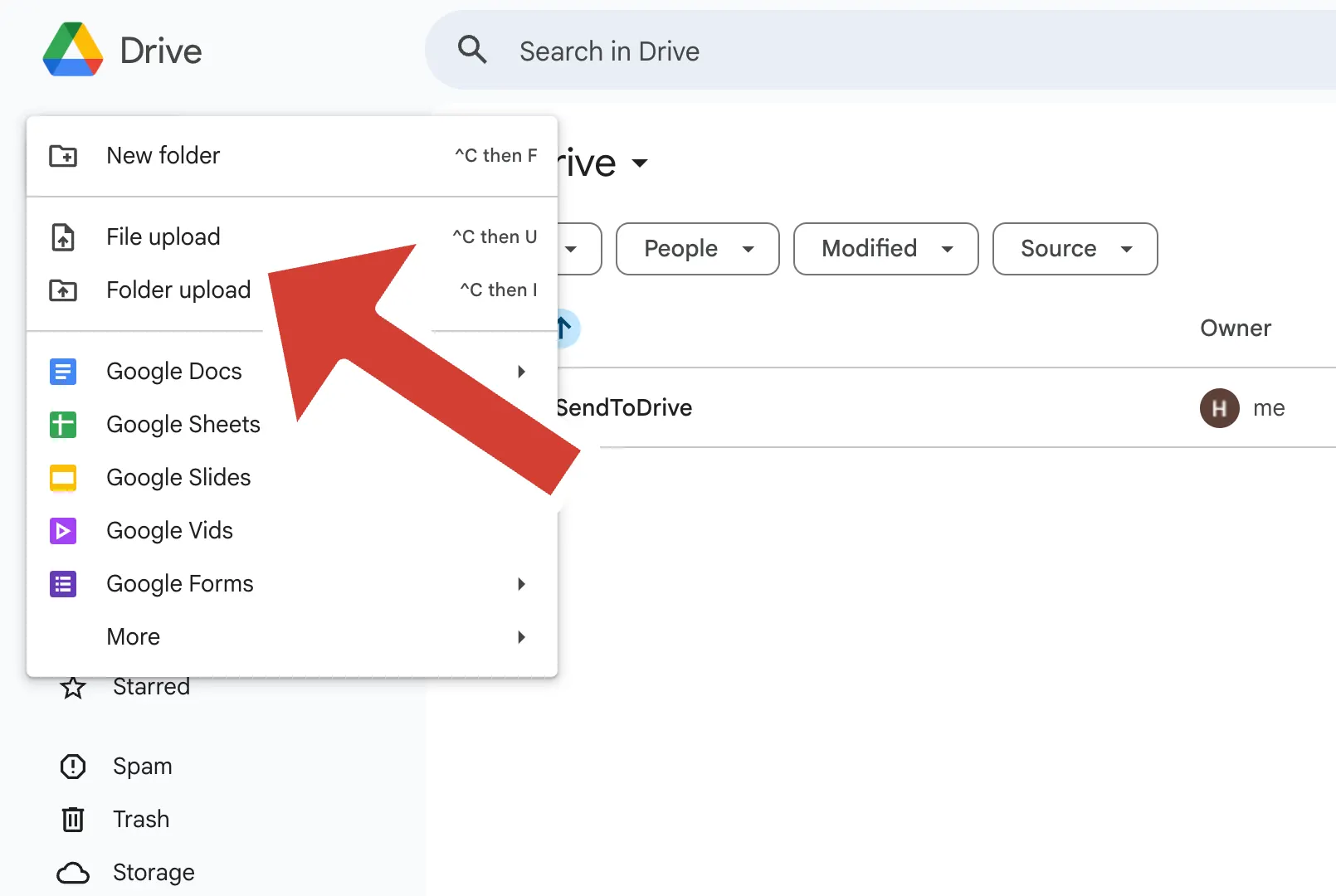
Step 3: Upload a File
Choose "File upload" or "Folder upload", then select the files from your device.
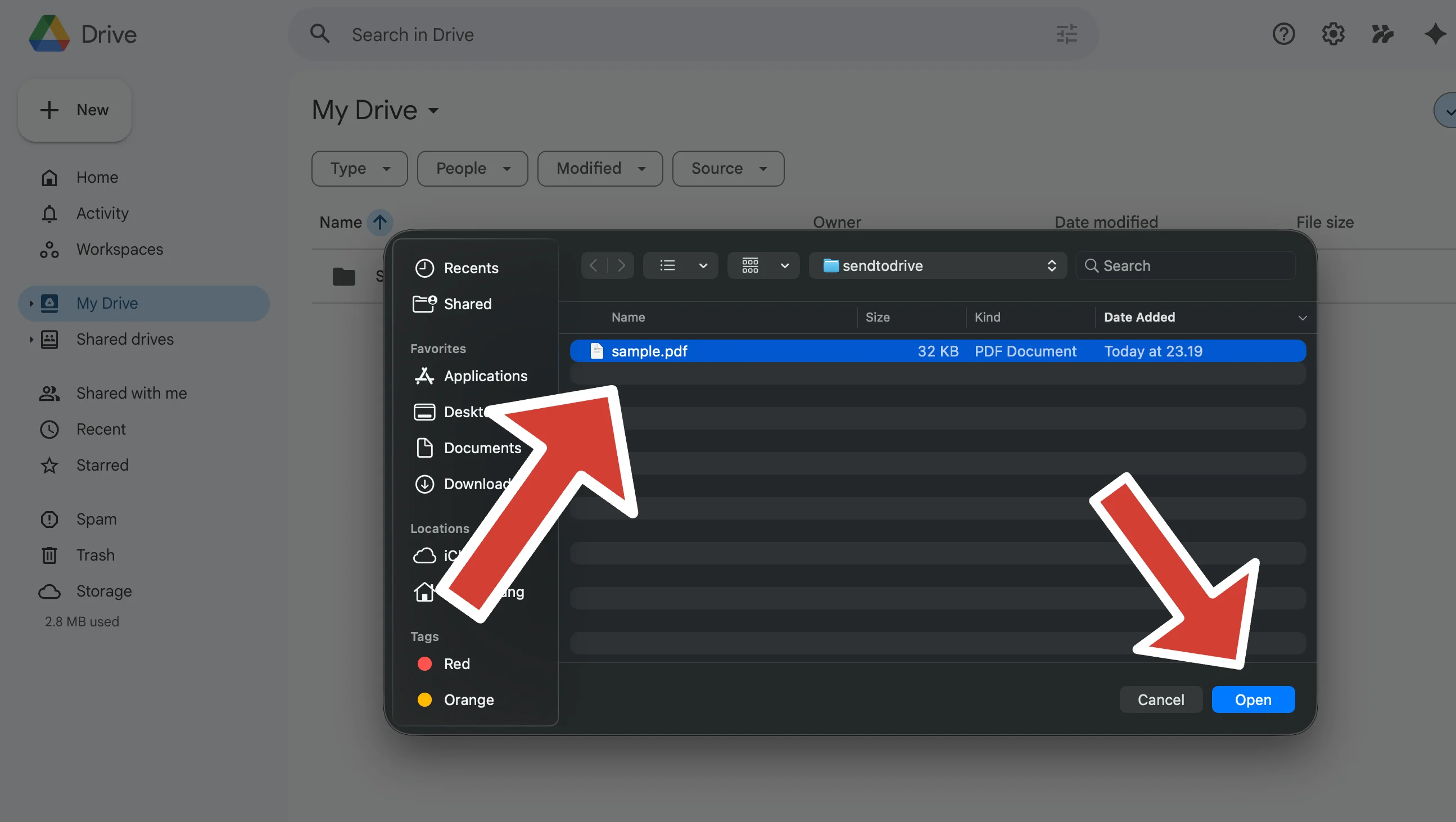
Step 4: Wait for the Upload to Finish
Your files will be uploaded and stored in your Google Drive.
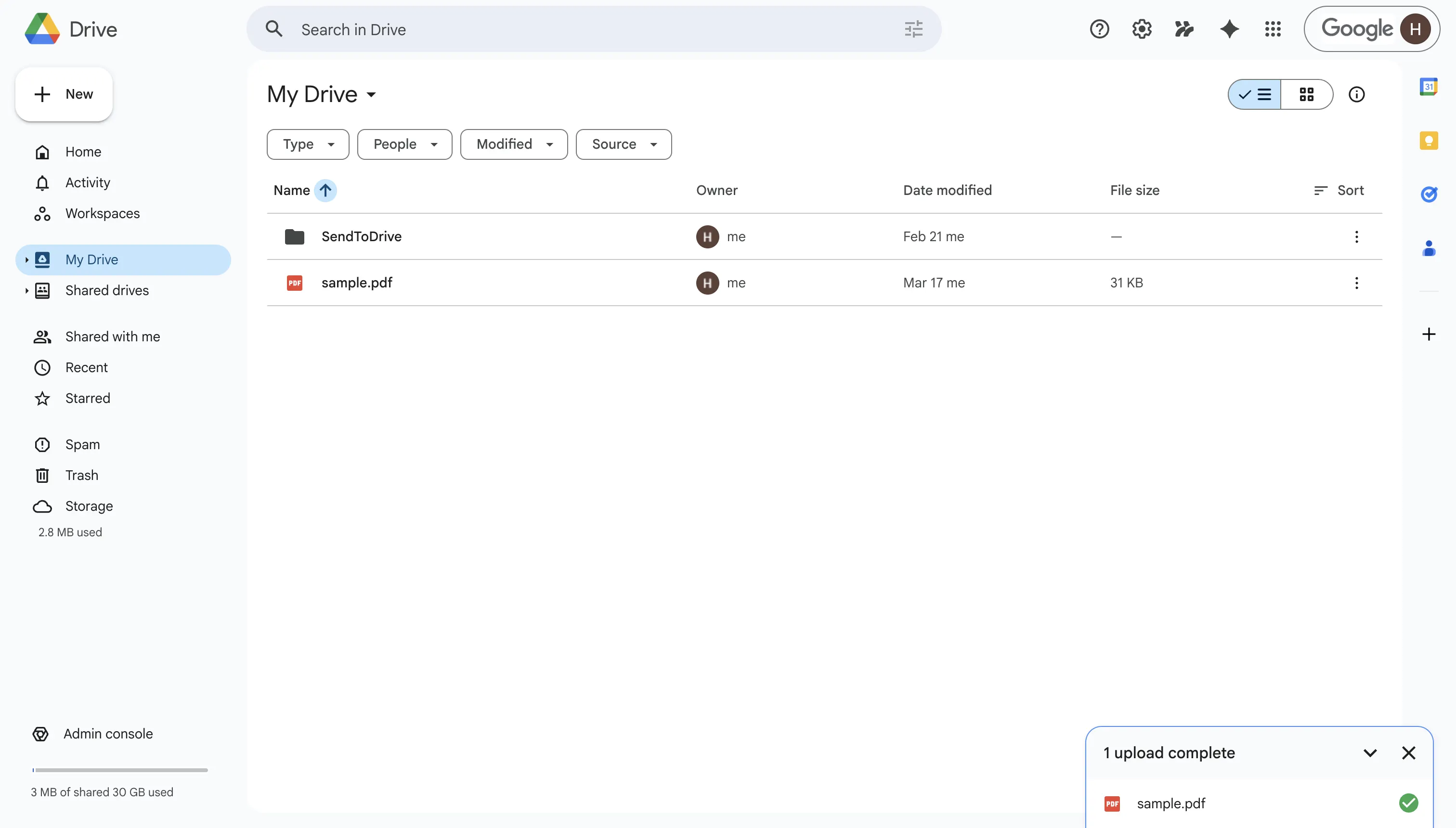
The Problem with Google Drive Uploads
While this works well for personal use, problems start to appear when you want other people to upload files to your Google Drive.
Common issues include:
- You have to share folder access
- Users need a Google account
- Permission settings can be confusing
- There’s a risk of users seeing or editing other files
- It’s not suitable for public or external uploads
Because of this, Google Drive is not ideal for collecting files from clients, users, or students.
A Better Approach: Upload Files via a Link
Instead of sharing folder access, a better workflow is to:
- Create an upload link
- Share it with anyone
- Let people upload files without signing in
- Send files directly to your storage
This removes friction and makes the whole process much faster.
A Simple Alternative: Use SendToDrive
SendToDrive lets you collect files directly into your Google Drive using a simple upload link.
Step 1: Create an Upload Page
Set a title, choose your Google Drive folder, and generate a link.
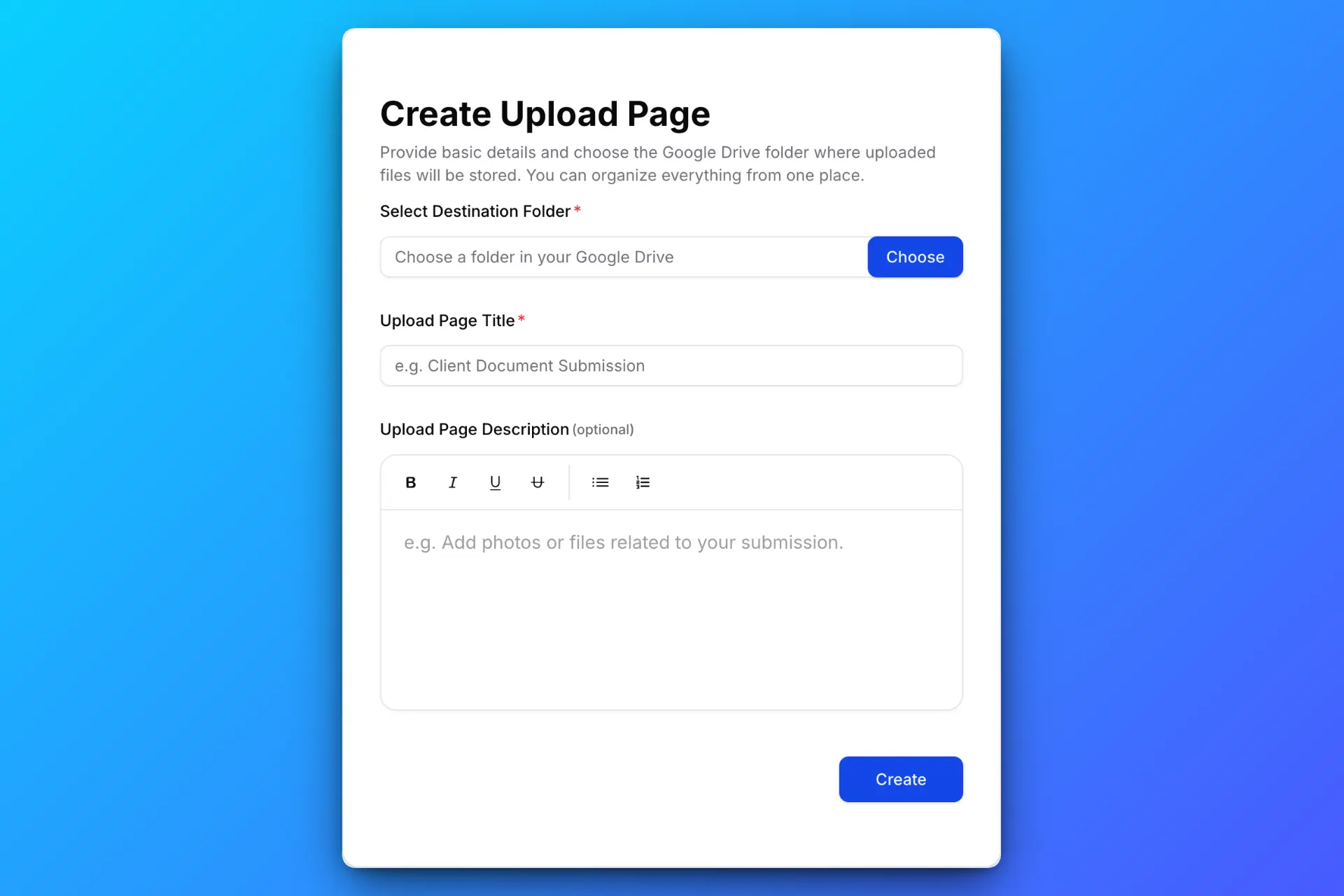
Step 2: Share the Link
Send the link by email, WhatsApp, or embed it on your website.

Step 3: Receive Files Instantly
Anyone can upload files without signing in, and the files are automatically saved to your Google Drive.
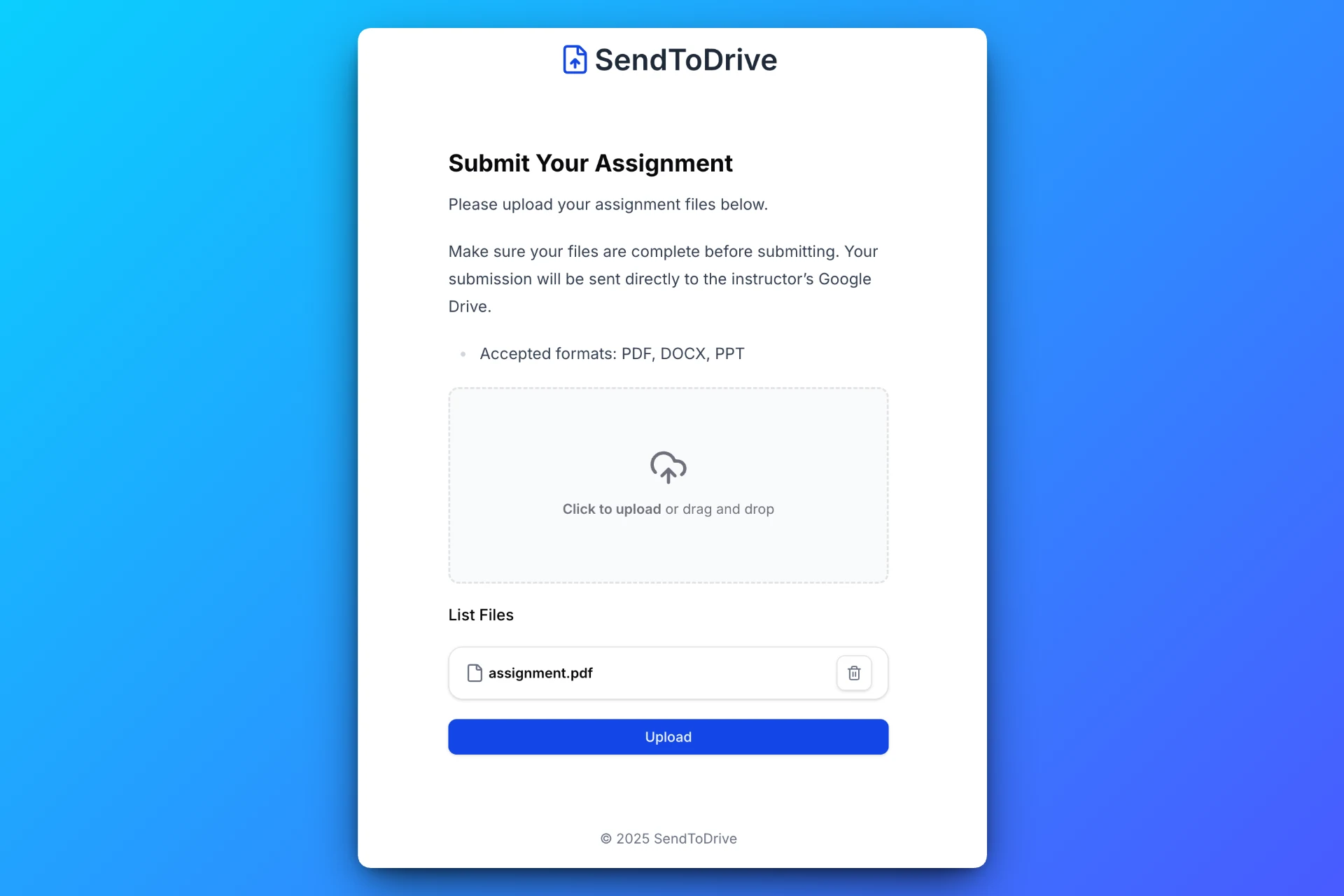
Why This Is Better
Compared with manually sharing folders in Google Drive:
- No login is required for uploaders
- No permission setup is needed
- No risk of exposing your files
- A cleaner and more professional workflow
Use Cases
Founders & Start-ups
Collect assets, feedback, and documents from users without unnecessary friction.
Educators
Receive assignments without requiring students to have Google accounts.
Businesses
Accept client files securely without relying on email attachments.
Conclusion
Google Drive is excellent for storing files, but it’s not ideal for collecting files from other people.
If you want a faster and simpler workflow, uploading files via a link is the better approach — and SendToDrive makes it effortless.
👉 Try SendToDrive and start collecting files in minutes.