Receive Large Files via Link (Step-by-Step)
Learn how to receive large files via link, configure upload rules, and check Google Drive storage before sharing the page.
Sending large files is easy. Receiving them reliably is not.
If you work with videos, high-resolution images, design assets, or project archives, you’ve probably experienced failed uploads, corrupted files, or size limits that completely interrupt progress.
This guide explains how to receive large files via link without email attachments or shared folder access.
Before setting up the page, review large-file upload limits, Drive storage, and recovery guidance. File size rules and available storage still apply when you use an upload link.
Why Large File Transfers Usually Fail
Most file transfer methods begin to break down as file sizes increase.
Common issues include:
- Email attachment limits (often under 25 MB)
- Upload failures on slow or unstable connections
- Shared folders requiring Google accounts
- Permission requests delaying delivery
- Partial uploads without clear feedback
When files reach hundreds of megabytes — or even gigabytes — these problems become unavoidable.
What “Receive Large Files via Link” Should Actually Mean
Receiving large files properly is not about sharing access. It’s about controlled uploads.
A reliable large-file workflow should:
- Accept files that meet the page’s limits and Google Drive requirements
- Show upload progress and report failures
- Require no login for uploaders
- Keep your storage private
- Deliver files directly to your Drive
An upload link solves these problems by separating uploading from storage access.
Step-by-Step: How to Receive Large Files via Link
Step 1: Create a Large File Upload Page
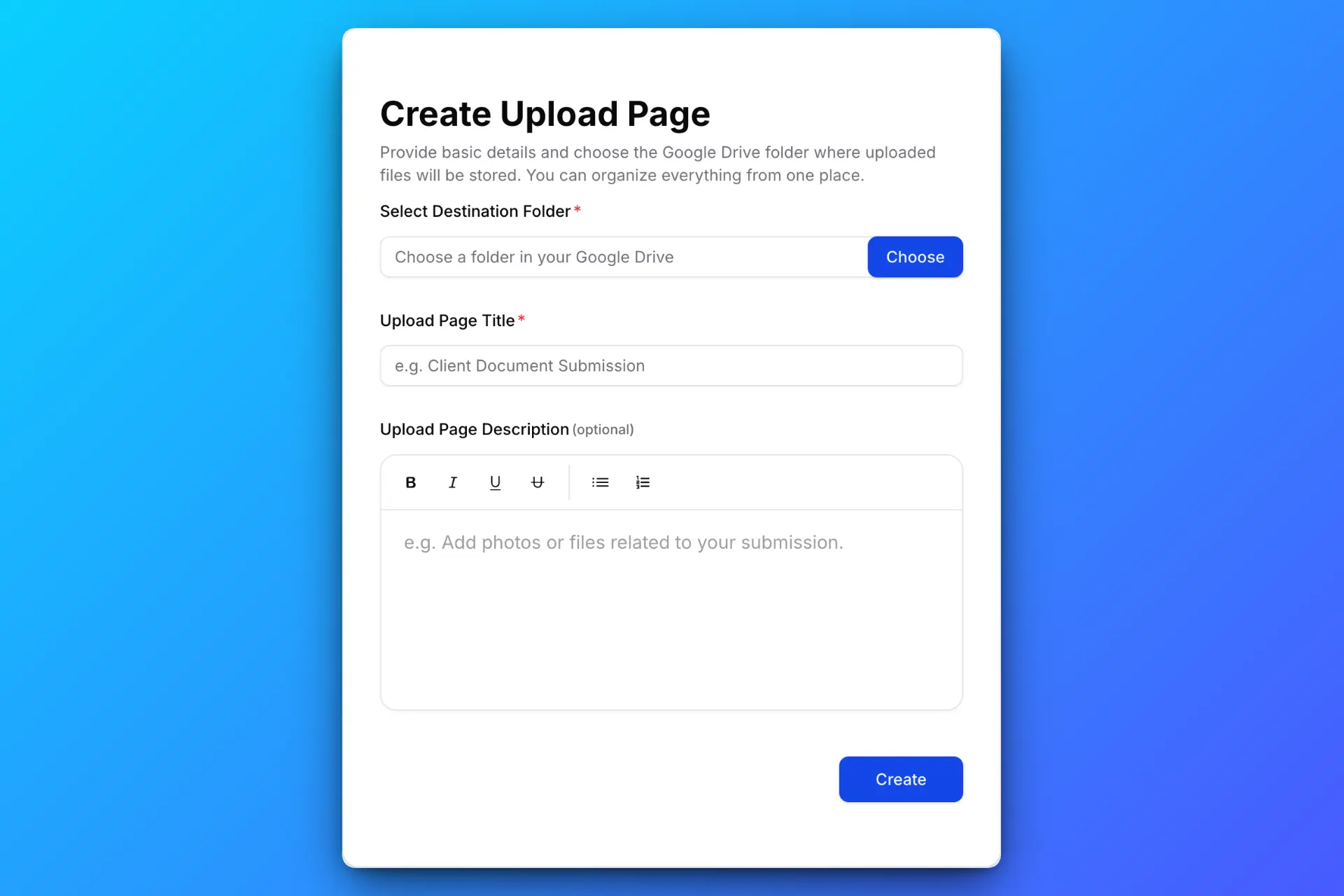
Create an upload page with clear instructions, especially when requesting large files. Select the destination folder in your Google Drive where uploads should be saved.
For large files, it’s important to configure limits correctly.
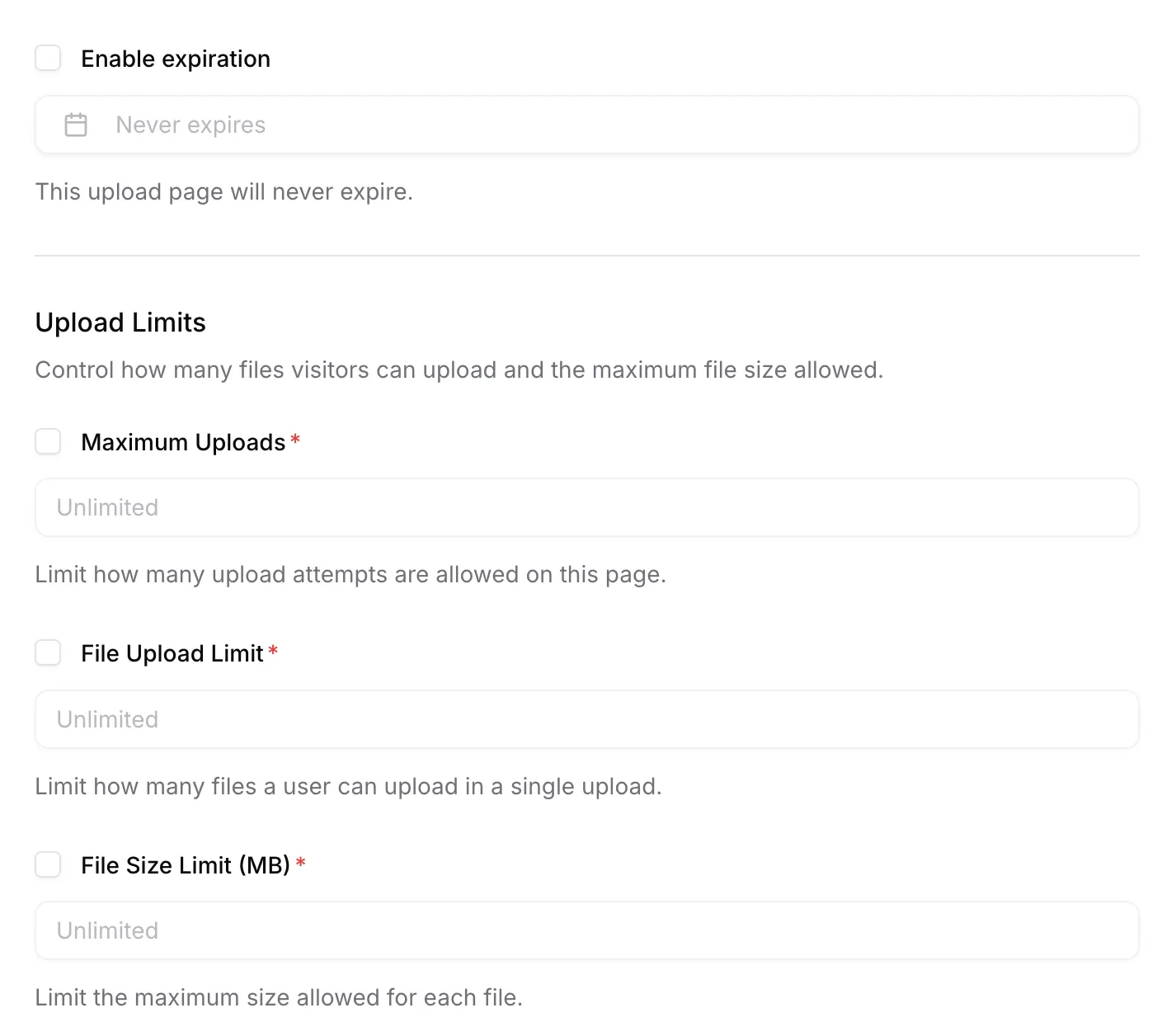
You can define:
- Maximum file size
- Allowed file types
- Upload expiry date
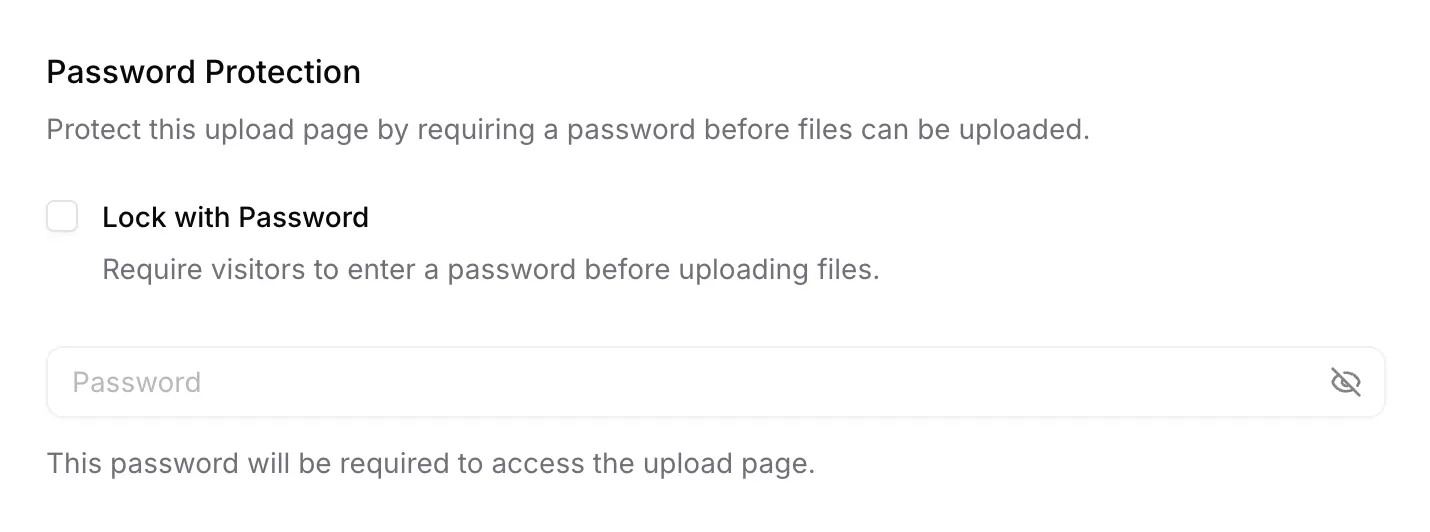
For sensitive or private files, enable password protection.
Step 2: Share the Upload Link

Send the upload link via email, messaging apps, or your website. Uploaders do not need a Google account and never gain access to your Google Drive.
This is especially useful when working with external collaborators or non-technical users.
Step 3: Uploaders Send Large Files Securely
If password protection is enabled, uploaders enter the password first.
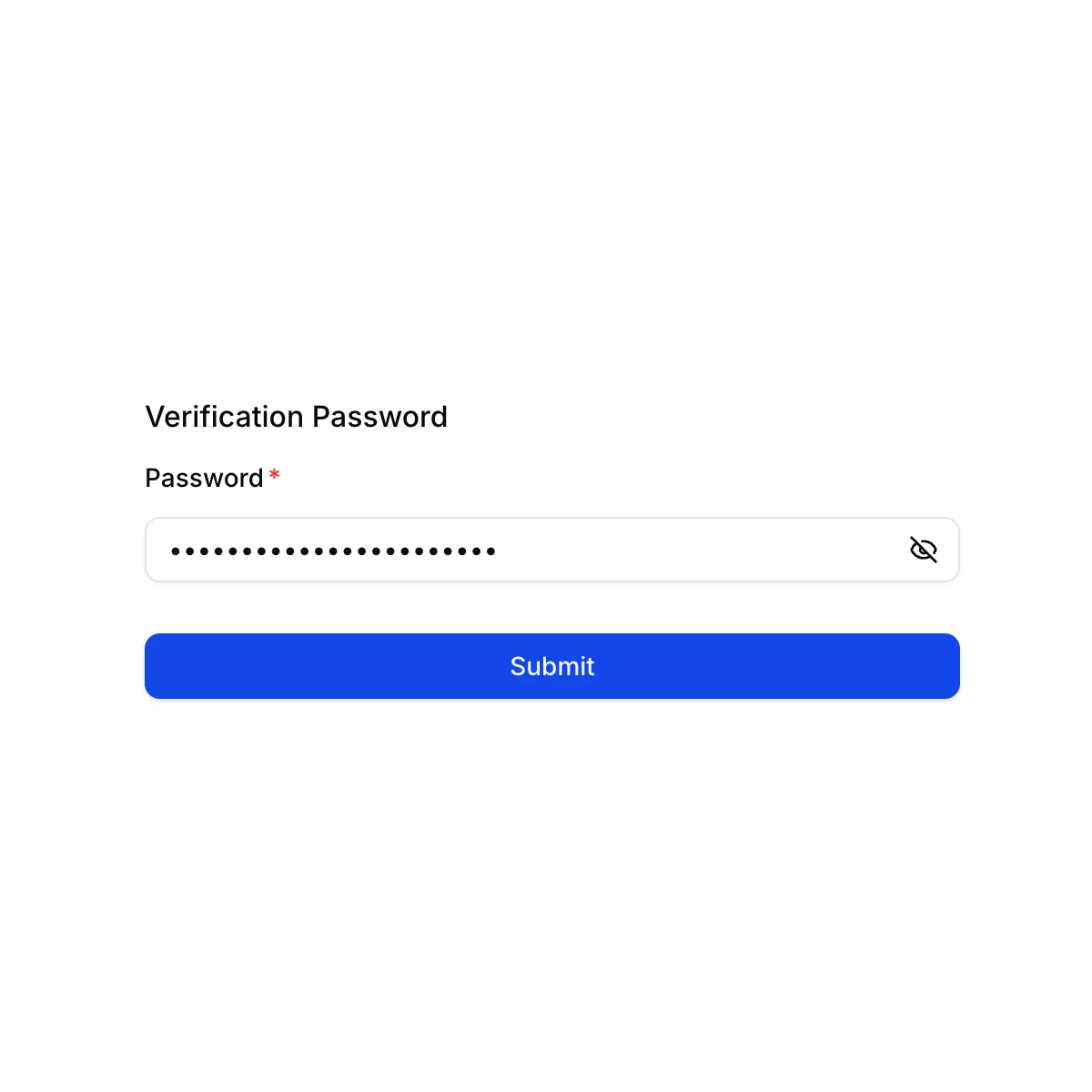
After that, they see a focused upload interface designed for file submission — not browsing.
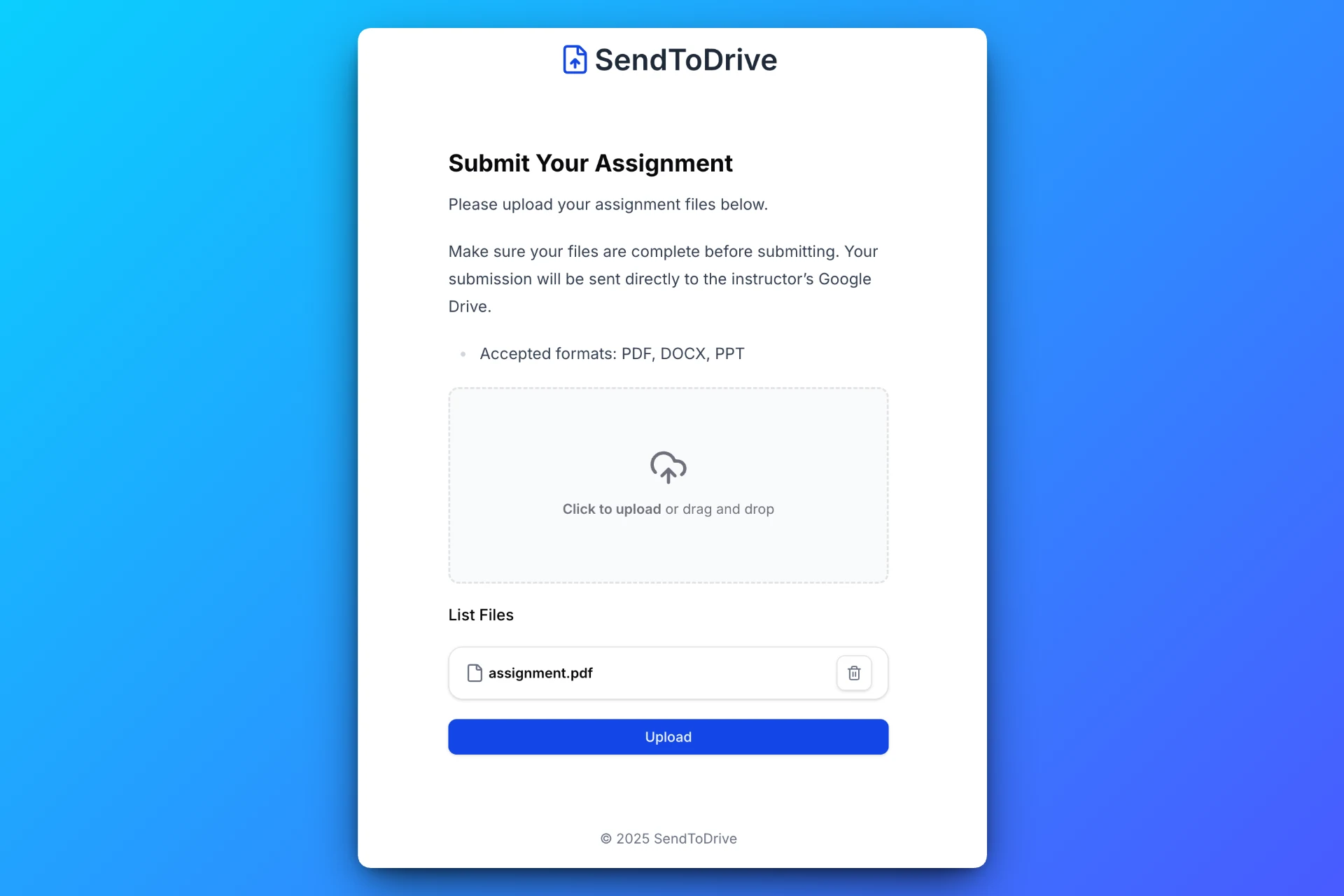
They can upload large files without worrying about permissions, folder structure, or visibility.
Step 4: Large Files Are Saved Automatically
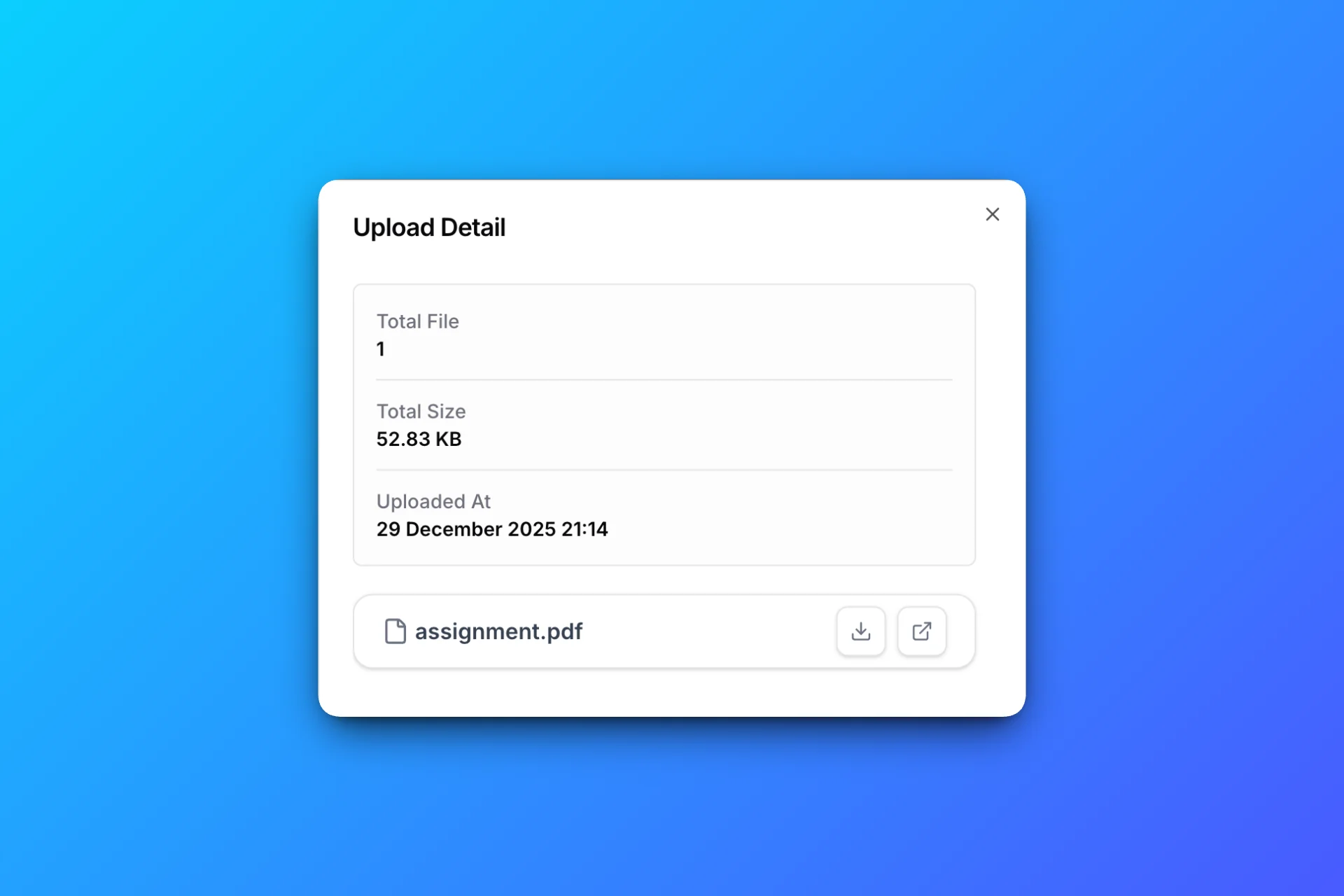
All files are delivered directly into your selected Google Drive folder. There’s no need to download and re-upload large files manually.
Real Use Cases for Large File Upload Links
Creative & Media Teams
Photographers and videographers regularly exchange raw footage and high-resolution exports. An upload link avoids email attachments, but connection failures and storage limits can still interrupt a transfer.
Print Shops
Print businesses often receive large design files. Upload links avoid email attachment limits; Google Drive limits, available storage, and configured page rules still apply.
IT & Software Teams
Developers can collect build artefacts, crash logs, or large test files from clients without setting up FTP servers or custom infrastructure.
Why Upload Links Work Better for Large Files
Large files expose the weaknesses of traditional tools.
With upload links:
- Uploaders don’t need accounts
- Your Drive stays private
- Large files go straight to storage
- Upload rules are enforced automatically
Check the destination storage and test the page with representative files before sharing it broadly.
Using SendToDrive for Large File Uploads
SendToDrive is built to handle external uploads efficiently, including large files.
With SendToDrive, you can:
- Receive large files via link
- Avoid email and shared folder limits
- Apply size restrictions and expiry dates
- Protect uploads with passwords
- Save files directly to Google Drive
No technical setup is required.
FAQs
Can I receive very large files using a link?
Files must fit Google Drive’s limits and available storage as well as any stricter page or field rules. A configurable limit is not proof that a particular file size has been tested.
Do uploaders need a Google account?
No. Uploaders can send large files without logging in.
Are uploads secure?
The upload link does not grant permission to browse existing Drive files. Review page access controls and permissions shared separately in Drive.
Where do large files go after upload?
Directly into your selected Google Drive folder.
Final Thoughts
An upload link can help collect large files directly in Drive. Configure the rules, confirm available storage, and test with the files you expect to receive.
👉 Review the large-file collection workflow in SendToDrive before sharing your upload link.