How to Create an Upload Page in SendToDrive
Create a SendToDrive upload page, choose a Google Drive destination, and receive files through a shareable link.
An upload page gives clients, customers, or teammates a simple link for sending files directly to a folder in your Google Drive. They do not need access to your Drive or a SendToDrive account.
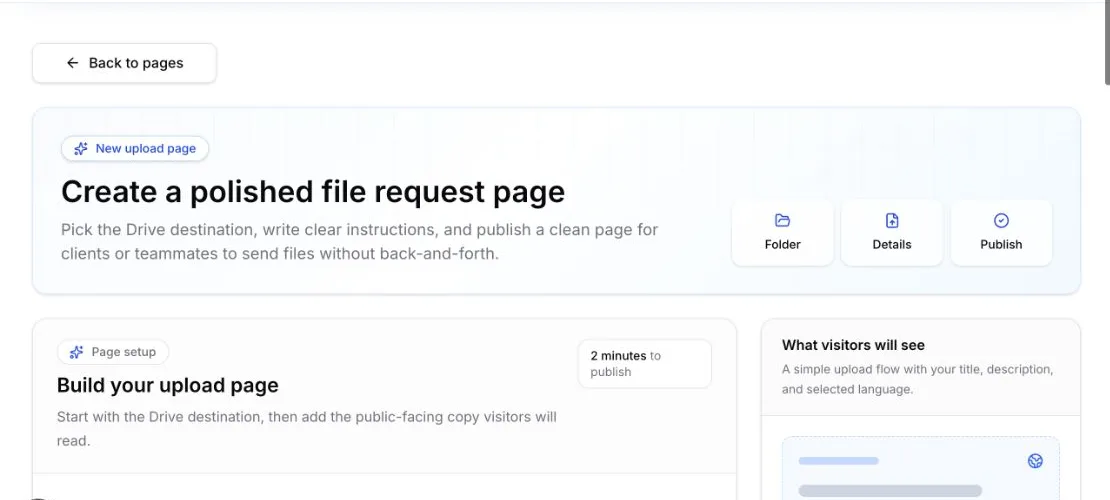
Step 1 — Open the upload page creator
Sign in to SendToDrive and open My Upload Pages. Click Create near the top of the dashboard.
SendToDrive opens the page setup form shown below.
Step 2 — Choose your form mode
Onboarding creates a Simple page. To use Structured, create a new page afterwards. The mode is chosen when creating the page.
- Simple: One general upload area with information fields.
- Structured: Separate file fields for each document category.
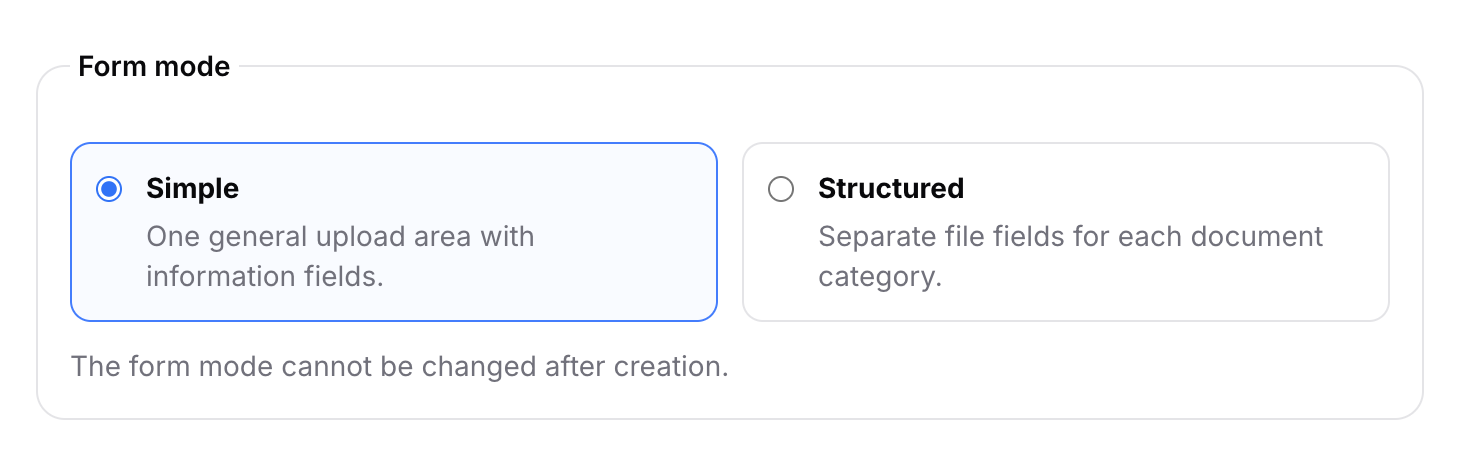
Structured: Available with personal Premium or workspace Business. The form mode cannot be changed after creation.
Compare the Simple and Structured form builder options before choosing your mode.
Step 3 — Choose the destination folder
Under Destination folder, choose where uploaded files should be saved:
- Type a folder name to create a new folder in Google Drive.
- Paste the URL of a Google Drive folder you can access.
- Click Choose to select an existing folder.
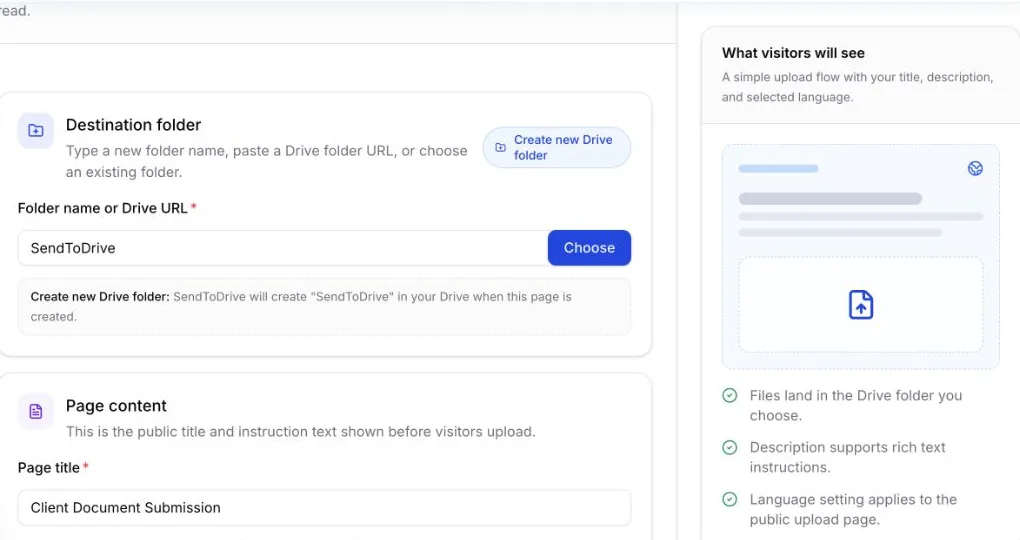
Files submitted through this page will be sent to the selected folder. The upload link does not grant permission to browse existing Drive files.
See how upload links handle guest accounts and folder access for the owner and guest requirements. For large submissions, check Google Drive storage and upload limits before sharing the page.
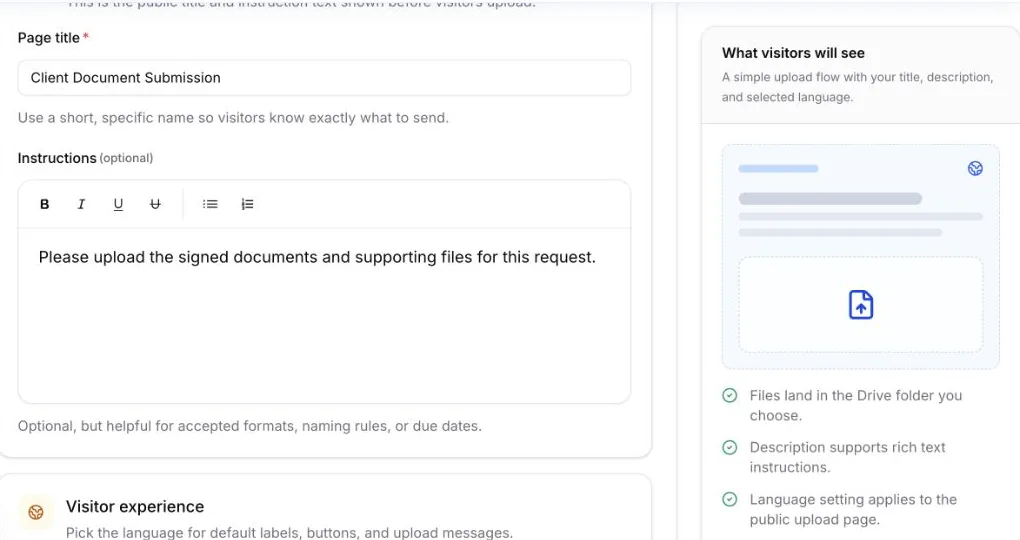
Step 4 — Add the page title and instructions
Enter a short, specific Page title that tells visitors what they should send. For example: Client Document Submission.
Use the optional Instructions field to explain accepted documents, file naming rules, or deadlines. The editor supports formatting and lists.
Step 5 — Select the language and timezone
Choose the language used for the public upload page labels, buttons, and upload messages.
Select the timezone used for report dates and generated Drive file or folder names. This setting can be changed later.
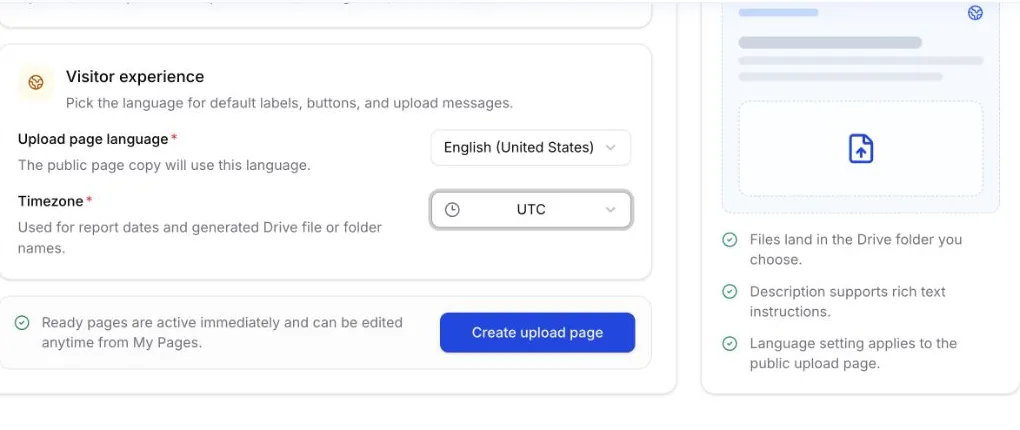
Step 6 — Create the upload page
Review the destination folder and page details, then click Create upload page.
After creating a Structured page, use Form Builder to configure each File Input before sharing the link.
- Set required fields and limits for file type, size, and count.
- Create Google Drive subfolders by document category.
Simple pages can be shared right away.
What happens next
Anyone with the link can open the page and submit files according to the access and file rules you configure. The uploaded files are stored in your selected Google Drive folder.
You can edit the title, folder, language, expiration, password, file rules, branding, and other settings without creating a new link.